

How to Maximize Wireless Video Range with Better Setup
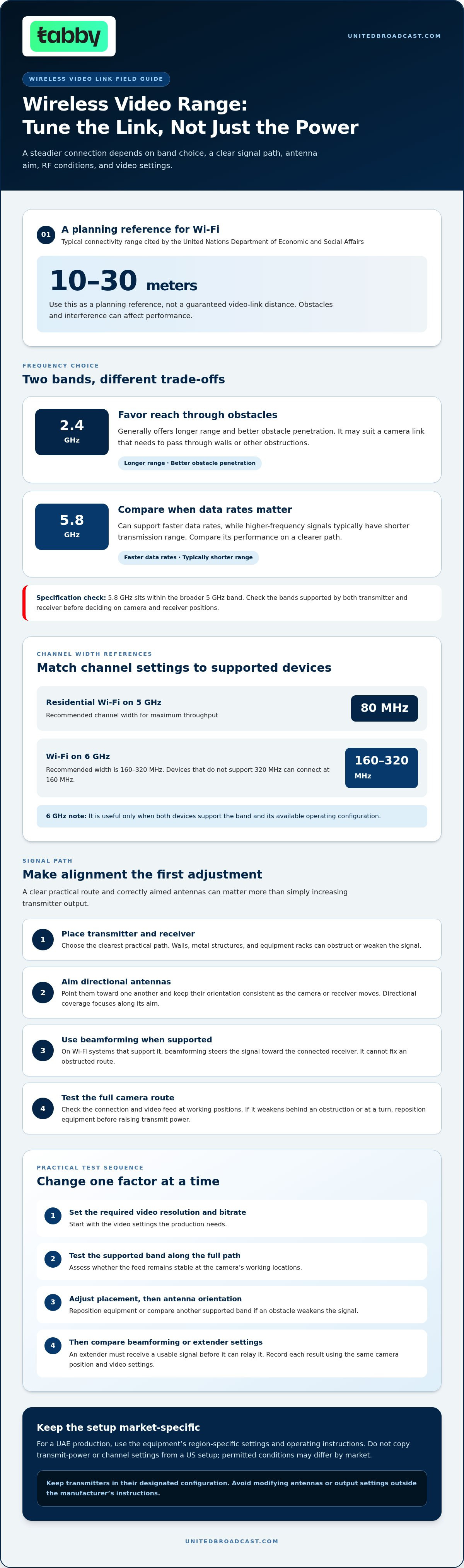
More transmitter power alone won’t produce a longer, steadier video link. Maximizing wireless video transmission range starts with choosing a suitable frequency band, aiming antennas along the signal path, reducing RF congestion, and balancing resolution against available bandwidth. For Wi-Fi, the United Nations Department of Economic and Social Affairs gives a typical connectivity range of 10-30 meters, while obstacles and interference can affect performance.
It’s easy to focus on a transmitter’s advertised range, but setup and operating conditions matter just as much. This guide explains how to approach maximizing wireless video transmission range by comparing frequency bands, antenna direction, RF congestion, power use, and video resolution. You’ll also learn a practical testing sequence to identify whether the limiting factor is the signal path, the RF environment, or the video settings.
Key Takeaways
- Choose between 2.4 GHz and 5.8 GHz based on the balance you need between obstacle penetration, range, and video bandwidth.
- Aim antennas along the transmission path and use directional signal features where supported to strengthen the link.
- Reduce RF congestion by reviewing nearby wireless activity and selecting channel settings suited to the environment.
- Use Wi-Fi’s typical 10-30-meter connectivity range, according to the United Nations Department of Economic and Social Affairs, as a planning reference.
- Match resolution and bitrate to available bandwidth to help maintain a stable video feed over distance.
Comparing 2.4 GHz and 5.8 GHz transmission bands
Choose a band by weighing the environment, required video bandwidth, and transmission path. For a UAE production, use the device’s region-specific settings, and don’t treat US FCC configurations as guidance for local operation.
-
Compare Frequency Bands and Transmission Range
Compare the 2.4 GHz and 5.8 GHz options supported by both transmitter and receiver. The 2.4 GHz band generally offers longer range and better obstacle penetration, while 5.8 GHz can support faster data rates. Higher-frequency signals, including 5.8 GHz, typically have shorter transmission range. Check the equipment’s supported bands before settling on camera and receiver positions.
-
Check Transmit Power and Frequency Limits
For a UAE shoot, follow the equipment’s region-specific configuration and operating instructions. Don’t copy a transmit-power or channel setting from a US setup, since equipment and permitted operating conditions may differ by market. Keep the transmitter in its designated configuration, and avoid modifying antennas or output settings outside the manufacturer’s instructions.
-
Compare Typical System Ranges
Compare the stated operating conditions for Wi-Fi, wireless HDMI, and dedicated video transmitters. Wi-Fi typically provides connectivity within a limited range of 10-30 meters, according to the United Nations Department of Economic and Social Affairs. Wireless HDMI and video transmitters don’t share one universal range; antenna design, obstructions, and receiver placement affect practical reach.
- Match the band to the production path. For a camera link passing through walls or other obstacles, 2.4 GHz may suit the environment better. For a clearer path where higher video data rates matter, compare 5.8 GHz performance. A dual-band Wi-Fi module can switch between 2.4 GHz and 5.8 GHz according to its environment, balancing range and bandwidth.
- Distinguish 5 GHz from 5.8 GHz when comparing specifications. The 5.8 GHz frequency sits within the broader 5 GHz band. For residential Wi-Fi, an 80 MHz channel width is recommended on 5 GHz for maximum throughput. The recommended 6 GHz channel width is 160-320 MHz; devices that don’t support 320 MHz can connect at 160 MHz.
- Test the connection using the region-specific settings available on the equipment. Begin with the required video resolution and bitrate, then assess whether the chosen band sustains the feed along the full path. If an obstacle weakens the signal, reposition the equipment or compare another supported band. A 6 GHz option is useful only when both devices support that band and its available operating configuration.
Beamforming and antenna signal direction
Start by mapping the transmitter, receiver, camera position, and major obstructions. Beamforming directs a Wi-Fi signal toward the receiver, which can strengthen the link over greater distances.
Range extenders add equipment and setup complexity, while directional antennas focus coverage along their aim rather than in every direction. Higher-power equipment can use more power, and increasing output alone won’t correct poor alignment or a blocked path.
- Place the transmitter and receiver where they have the clearest practical path. For example, move a receiver from behind a monitor to an open position facing the camera transmitter. Walls, metal structures, and equipment racks can obstruct or weaken the signal, so test from the actual production positions.
- Align directional antennas toward one another before changing other settings. Keep their orientation consistent as the camera or receiver moves, and avoid pointing an antenna at a wall or away from the intended link. A directional pattern can support a focused connection, but devices outside that direction may receive weaker coverage.
- Enable beamforming when both ends of the Wi-Fi system support it. This feature steers the signal toward the connected device instead of distributing it equally in every direction. Test with the receiver in its working position; beamforming can’t compensate for an obstructed route or a receiver outside the useful signal path.
- Compare signal performance at the camera’s working locations, not just beside the transmitter. Move the camera along the planned route while monitoring the receiver’s connection and video feed. If the signal weakens at a turn or behind an obstruction, reposition the receiver or transmitter to improve the path before increasing transmit power.
- Use a range extender only when it can receive a usable signal and relay it toward the destination. Placing it in a dead zone won’t restore the original link. An extender also adds another device and configuration point, so compare its practical benefit with relocating the transmitter or receiver.
- Evaluate antenna direction across the full production area. A directional antenna may help with a fixed camera-to-receiver route, while a moving camera may need broader coverage as its angle changes. Test the signal along the entire route, then secure the antenna mount so routine movement doesn’t shift its aim.
- Change one factor at a time and record the result. Test placement first, then antenna orientation, followed by beamforming or extender settings. Comparing the same camera position and video settings helps show which adjustment improved the link, without confusing a change in alignment with a configuration change.
RF congestion and connection stability
A longer reach can expose a wireless video connection to more interference, latency, and security risks. Protect the link with encryption, then tune channel use and signal strength for stable video.
- Survey nearby RF activity before selecting a channel. In a crowded 2.4 GHz environment, use a 20 MHz channel width to reduce interference. For high-density Wi-Fi, a 40 MHz channel width on 5 GHz balances throughput and stability. Retest the video feed after changing the channel, since congestion varies across locations.
- Keep channel width matched to the band and system. On 6 GHz, recommended channel widths are 160-320 MHz; devices that don’t support 320 MHz can connect at 160 MHz. Wider channels can support throughput, but in a congested environment, assess whether the chosen configuration maintains a reliable video connection.
- Measure received signal strength at the camera’s working position. A stable Wi-Fi connection requires -70 dBm or better; for troubleshooting clients, -65 dBm or better is preferred. If the reading falls below those thresholds, improve placement or reduce obstructions before increasing transmission power. Record the signal at each camera position to locate weak points.
- Set access point power to suit the environment. In high-density Wi-Fi environments, medium transmission power can help prevent access points from interfering with one another. Residential Wi-Fi generally uses high access point power unless units are very close together. If the signal remains low despite high power, adding access points can improve coverage.
- Check every wireless mesh hop between the source and receiver. Each hop reduces throughput by at least 50%, so a multi-hop path can leave less capacity for video. For wireless mesh performance, connect access points at -60 dBm or better. Place nodes where their connection remains strong, rather than at the edge of coverage.
- Enable fast roaming when a camera or receiver moves between access points. It supports seamless transitions, while band steering can prioritize 5 GHz for compatible clients. Test movement during recording, because a roaming interruption can disrupt the feed. A wireless delay of 60 milliseconds can also make a focus point trail behind the action.
- Secure the transmission with encryption and other protective measures. The United Nations notes that communications can face government or third-party interference without such safeguards. Range-focused settings don’t replace security controls. For a production link, apply encryption and restrict access to intended devices before transmitting footage.
Wireless video system range and resolution comparisons
Compare usable video quality at the intended camera position, not just maximum advertised reach. Resolution, bitrate, compression, and the test path all affect whether a wireless feed stays usable.
-
Adjust Resolution, Bitrate, and Compression
Reduce resolution or bitrate when the wireless link can’t sustain the required video data rate. More efficient compression can also lower data demand, helping the feed remain usable farther along the same path. These settings don’t increase radio power; they reduce the throughput the video requires. Before adopting a lower-data profile, check for lost detail, compression artifacts, and delay.
- Set the required image quality before testing range. For a wide establishing shot, a lower resolution may preserve a stable feed when fine detail isn’t essential. A close-up used for focus evaluation may need more detail, so retain a higher-quality profile and improve the wireless path instead. Match bitrate to scene complexity, since motion and fine texture can demand more data.
- Change one encoding setting at a time. Record the resolution, bitrate, and compression mode for each test, then compare the same shot and camera position. If lowering bitrate removes dropouts but introduces visible artifacts, restore quality and address the connection path. Don’t choose a profile based only on a static image; camera movement reveals how the stream handles changing detail.
-
Measure and Test Range Safely
Test from a controlled position using the actual transmitter, receiver, camera, and intended video settings. Mark each camera position, monitor the incoming feed, and note where freezes, dropped frames, or quality changes begin. Mount equipment securely and keep crew routes clear and safe. Use the same shot and settings when comparing locations.
- Repeat the test along the production route, including turns and locations behind obstacles. Keep the receiver in its planned position, and avoid moving multiple components between comparisons. A signal-strength reading can help explain a feed problem, but judge range by both connection quality and usable video. Stop extending the path when the feed no longer meets production needs.
- Document the best-performing setup for the shoot. Record equipment placement, antenna orientation, selected video profile, and any observed interruptions. Then repeat the test with the camera moving as it will during production. This reveals weak points a stationary test may miss and helps distinguish inadequate bandwidth from a blocked or unstable signal path.
- Compare range only under equivalent conditions. Keep the scene, camera movement, receiver location, and encoding settings consistent across trials. For example, don’t compare a low-bitrate static image with a high-bitrate moving shot and attribute the difference solely to distance. A controlled comparison identifies which combination preserves the required image quality and connection stability.
What is the typical range of Wi-Fi, wireless HDMI, and video transmitters?
Compare each system using the same camera position, receiver placement, and picture requirements. Wi-Fi provides a useful reference range, while wireless HDMI and dedicated video transmitters depend on their design and operating conditions.
- Use Wi-Fi’s typical range as a planning reference, not a production guarantee. According to the United Nations Department of Economic and Social Affairs, Wi-Fi typically provides connectivity within a limited range of 10-30 meters. Walls, equipment, and competing signals can reduce usable reach, so test the connection from the actual camera and receiver positions.
- Assess wireless HDMI according to the specific system’s stated operating conditions and your intended route. A clear path between transmitter and receiver differs from one crossing walls, people, or set structures. Compare the received image and connection stability at each planned camera position rather than assuming the system’s stated range applies equally in every environment.
- Evaluate dedicated video transmitters against the full production requirement. Their practical range depends on antenna design, placement, obstructions, and video data rate. A link carrying a lower-data video profile may behave differently from one transmitting a higher-quality feed. Treat usable range as the distance over which the required image and connection are maintained.
- Distinguish advertised reach from usable video range. A signal may remain connected while the picture freezes, drops, or loses the quality needed for focus and monitoring. Define what counts as an acceptable feed, then test for those conditions along the route. For example, note whether a moving camera maintains a stable image behind a set wall.
- Compare systems under consistent conditions. Keep the camera, receiver, positions, and resolution unchanged while testing Wi-Fi, wireless HDMI, or a dedicated transmitter. Mark where the video first becomes unreliable, then repeat the comparison along the same path. This shows which system better suits the shoot, rather than comparing different setups.
- Consider the environment before choosing a link. A studio with clear sightlines differs from a location with partitions, metal structures, or active wireless equipment. Walk the camera route and identify obstructed points. Place the receiver where it can maintain a useful path, rather than relying on transmitter distance alone.
- Choose a system around the most demanding camera position, not the easiest test point. If a wireless HDMI link works beside the receiver but fails at the far end of the route, adjust the placement or compare another suitable system. Document the route, video settings, and observed dropouts so the production team can reproduce the test.
United Broadcast & Media Solutions (UBMS): Professional Video Cameras
United Broadcast & Media Solutions (UBMS) supplies Professional Video Cameras and Digital Cinema Cameras for production teams assessing camera systems alongside wireless monitoring needs. When planning a setup, consider how camera position, required image quality, and the wireless path work together. The camera is one part of the signal chain; placement and transmission settings also shape the result.
UBMS also offers Cinema Lenses and Professional Lighting Equipment to support production configurations. These offerings address different parts of the imaging setup, while wireless range depends on the transmitter, receiver, environment, and chosen video settings. For camera selection, explore UBMS’s professional video cameras.
For help selecting camera equipment for your production setup, contact United Broadcast & Media Solutions or visit unitedbroadcast.com.
Plan Your Next Production Around the Signal Path
Before your next shoot, document the camera route, monitoring needs, and image quality the crew must preserve. That production plan gives you a practical basis for maximizing wireless video transmission range by connecting technical choices to the shots and movements that matter. Treat the wireless link as part of the full imaging workflow, not as an isolated specification.
If you're reviewing the camera setup, United Broadcast & Media Solutions (UBMS) supplies Professional Video Cameras, Digital Cinema Cameras, and Cinema Lenses. These categories help you consider image acquisition equipment alongside transmission requirements. Match the setup to the work, then test it in the conditions where you'll use it.
Make the next test purposeful, and build a wireless workflow your production team can use with confidence.
Frequently Asked Questions
What Factors Affect The Performance Of A Video Transmitter?
A video transmitter’s performance depends on its signal path, available bandwidth, receiver compatibility, and operating setup. The camera’s output format must also match what the transmitter can accept. For example, a production monitor may show a black screen if the camera output and receiver configuration don’t align, even with a strong wireless signal. Check the full camera-to-display chain, including connectors, formats, and receiver decoding, before troubleshooting range.
What factors determine wireless video transmission range?
Wireless video range depends on the complete link, not the transmitter alone. The antenna system, receiver capability, obstacles, RF activity, and data demand all influence whether the signal remains usable. Consider the intended camera route and monitoring equipment location together. A link that works for a fixed tripod shot may behave differently when a camera moves behind set pieces or people, so assess the actual production workflow.
How do frequency bands and wireless standards affect video range?
Frequency band affects how a signal travels, while the wireless standard influences available bandwidth and device compatibility. The transmitter and receiver must support compatible bands and operating modes. For example, a newer access point can’t deliver its full capabilities to a camera receiver that supports only an older standard. Compare specifications at both ends, then choose a mode that meets the video’s data needs without relying on capabilities you won’t use.
How can antenna placement and antenna gain maximize wireless video range?
Place antennas clear of camera bodies, metal rigging, and monitor brackets that can obstruct or distort the signal. Keep transmitter and receiver antenna polarization aligned, and secure mounts so movement doesn’t change their orientation. Higher antenna gain focuses coverage more strongly in particular directions, which may suit a fixed camera route but can reduce coverage as the camera turns. Test each planned angle rather than optimizing for only one position.
How do transmit power, receiver sensitivity, and line of sight affect range?
Transmit power influences the signal sent, receiver sensitivity affects how weak a signal can be while remaining usable, and line of sight reduces obstruction along the path. The link still depends on both ends: increasing transmitter output won’t correct a poorly placed receiver or blocked route. Check the receiver’s signal indicators and picture together, then reposition equipment before changing power settings.
What steps reduce interference and improve wireless video reliability?
Identify interference sources by comparing connection performance with nearby wireless equipment active and then temporarily quieted. Where practical, separate video equipment from access points and other transmitters, and avoid changing several settings at once. Secure the link with encryption and restrict access to intended devices. During rehearsal, test camera movement and watch for brief interruptions, since a stationary check can miss dropouts during a live camera move.
How do walls, buildings, weather, and terrain affect video transmission range?
Walls, buildings, and terrain can block or weaken a radio path, while metal structures can create additional signal reflections. Walk the camera route and note where concrete walls, stairwells, or changes in terrain sit between transmitter and receiver. Moving foliage or temporary obstructions can also alter an outdoor path. In a difficult location, place the receiver where it has a clearer route and test from each critical camera position.


