

Broadcast Video Switchers and How They Work in Live Production
A live production is only as coherent as the feed viewers see. Broadcast video switchers bring camera shots, graphics, and playback clips together, letting an operator select and combine sources into the program output. They can be dedicated hardware systems with a control panel or software running on a computer.
The basic idea is straightforward: choose what appears on screen. The complexity lies in managing multiple sources, displays, layers, and transitions smoothly during a live production. Understanding how these elements work makes it easier to assess what a switcher can do and how it fits your production needs.
This guide explains how inputs and outputs connect, how multiviewers help operators monitor sources, and how keyers, M/E banks, and digital effects shape the program feed. It also covers how switchers support live workflows, from selecting shots to adding graphics and coordinating audio, so you can follow the signal path from source to screen.
Key Takeaways
- See how switching supports different live formats, from newsroom coverage to stadium displays.
- Understand the trade-offs between dedicated hardware and computer-based software systems.
- Follow how sources enter the switcher, how outputs reach screens, and how multiviewers help operators monitor feeds.
- Learn how keyers, M/E banks, and digital effects build layered graphics and transitions.
- Explore how audio integration and programmable sequences can support a coordinated live workflow.
Broadcast and live-event applications
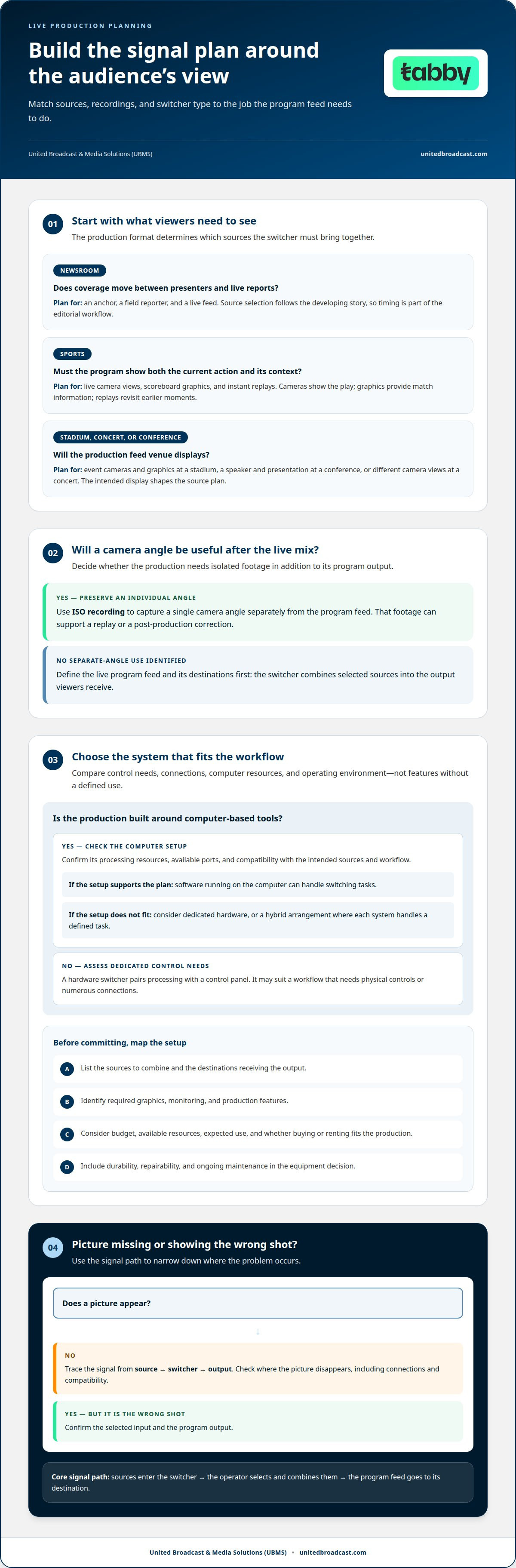
Broadcast video switchers serve different roles in television, sports, and live events. Their value depends on the production sources and the output viewers need. A newsroom, for example, may cut between an anchor, a field reporter, and a live feed. The operator selects the next source as coverage changes, keeping the broadcast aligned with the developing story. Source selection is therefore part of editorial timing, not simply a change of picture.
Sports coverage brings different demands. A switcher can move between live camera views, display scoreboard graphics, and bring up instant replays. Each element serves a distinct purpose: cameras show the current play, graphics provide match information, and replays revisit earlier moments. The production team coordinates them so the program feed presents the action and its context clearly. The setup depends on the broadcast’s production needs and available resources.
At stadiums, concerts, and conferences, switchers can combine sources for venue displays. A stadium production might use event cameras and graphics, while a conference may pair a speaker feed with presentation material. A concert can bring different camera views together on screens around the venue. In each case, the intended display shapes the source plan: what audiences need to see, where they will see it, and how the production changes between moments.
Recording choices also affect how a production can use footage later. An ISO recording captures a single camera angle separately from the program feed. That isolated angle can support a replay or post-production correction. For example, a team reviewing a live segment can revisit a moment using an individual camera recording, rather than relying only on the mixed program output. ISO recording is useful when separate source footage has a role beyond the live transmission.
For buyers, these applications help define the workflow before equipment selection. List the sources the production must combine, the graphics it needs, and the destinations receiving the output. Then decide whether replay or separate camera recordings matter. A newsroom prioritizing live feeds may have different requirements from a conference using screens for speakers and presentations. Choose based on production needs, budget, and available resources, not features without a defined use.
Durability and repairability matter throughout a switcher’s working life. The United Nations describes circular-economy design as emphasizing products that last longer and are easier to repair. For production teams, that perspective makes equipment maintenance part of the buying decision. A switcher’s role in live events may be clear, but its fit also depends on how it supports ongoing operational needs.
What is a video switcher?
A video switcher combines video sources into one program feed. Sources can include cameras, graphics, and prerecorded clips. The operator selects which source appears and sends the composed output to its destination. In a live interview, for example, the production can move from a wide camera view to a close-up, then return to the host. The switcher manages these selections as part of the production workflow.
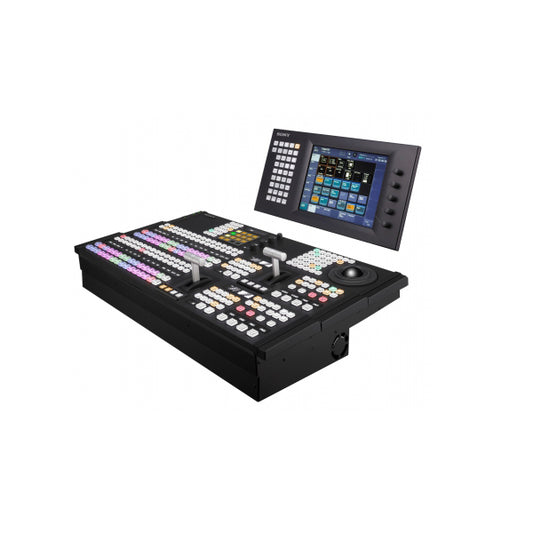
Switchers use either dedicated hardware or software running on a computer. A hardware system pairs processing with a control panel, giving operators physical controls for selecting sources and transitions. Software handles similar switching tasks through a computer interface. Some productions combine both types, assigning different tasks to each system. The right approach depends on the production’s sources, workflow, available resources, and operating environment.
How much do broadcast video switchers cost? Costs depend on the system’s capabilities and the production setup it must support, so there is no single useful figure for every project. Set a budget in AED around the required inputs, outputs, monitoring, and production features, rather than comparing equipment without a defined workflow.
Hardware provides a dedicated switching system, while software relies on the computer running it. This affects planning: software depends on the computer’s processing power, and available ports or compatibility can limit the setup. For example, a computer-based production must account for how its connected sources reach the software. A hardware system may suit a workflow requiring a dedicated control panel and numerous connections.
Software can suit a production built around computer-based tools, but compatibility matters. Check how the intended sources connect to the computer and whether its processing resources support the planned workflow. Hardware and software can also work together, with each system handling a particular task. This hybrid approach can help teams divide responsibilities, provided the signal path between systems is clearly planned.
What are common broadcast video switcher problems, and how can you troubleshoot them? A missing or incorrect picture can result from the selected source, a connection, or a compatibility issue. Trace the signal path from source to switcher to output, then identify where the picture disappears. If the picture appears but shows the wrong shot, confirm the selected input and program output.
Buying, renting, and maintaining a switcher each suit different needs. Buying can make sense for recurring productions, while renting may suit a one-off event; maintenance should keep connections, controls, and system operation in working order. Before committing, map the sources and outputs, identify essential features, and consider the equipment’s expected use. For a production setup involving computer-based hardware, explore computer video hardware as part of the system-planning process.
Inputs, outputs, and multiviewers
Plan connections by mapping the sources entering the switcher and the destinations receiving its signals. This makes it easier to see whether the system suits the production.
Input and output connections
Inputs connect sources such as cameras, playback devices, and computers; outputs send video to destinations such as monitors, projectors, and the live broadcast feed. For a conference, for example, the production may need inputs for cameras and a presentation computer, plus outputs for a confidence monitor and the program feed.
Count each source and destination in the planned setup, then compare them with the switcher’s available connections. Account for sources used together, not just the total number owned. Hardware switchers can provide numerous inputs and outputs to support larger signal paths. The priority is matching those connections to the production’s actual routing needs.
Multiviewer functionality
A multiviewer displays available video sources side by side, helping an operator monitor several feeds on one screen. A separate screen shows the live output. In a news production, the operator might monitor the anchor camera, a reporter feed, and a playback source together while tracking the program feed independently.
This layout distinguishes the available sources from the picture currently on air. If a reporter feed is ready, the operator can see it before selecting it. The program screen remains the reference for the outgoing picture. When comparing systems, consider how the multiviewer presents sources and whether its display suits the operator’s monitoring workflow.
Feature and specification comparisons
Compare connection capacity, source types, output destinations, and monitoring tools against a real production plan. These specifications matter because a switcher must route the planned sources to the intended displays or broadcast feed. A setup with several cameras, a playback device, and a computer, for instance, has different connection needs from one using only a few sources.
Assess how the control setup supports monitoring. A multiviewer helps track sources, while the program display shows the outgoing feed. Hardware models may offer numerous inputs and outputs; software systems depend partly on computer ports and compatibility. A useful comparison considers the complete signal path, not a feature label in isolation.
Supported formats, resolutions, and protocols
Supported video formats, resolutions, and streaming protocols vary by switcher model. No single set applies to every production system. Compare the switcher’s stated support with the signals from your production sources and the requirements of the receiving platform or display.
Keep the terms distinct: a video format describes the signal, resolution describes its image dimensions, and a streaming protocol governs delivery over a network. A camera signal, computer source, and online destination may each have different compatibility requirements. Confirming the complete path helps identify mismatches before they disrupt a live production.
Keyers, M/E banks, and digital effects
Keyers, M/E banks, and digital effects shape how a live picture is layered and changed. They let operators add information without replacing the underlying camera shot. For example, a presenter can remain visible while a headline appears over the picture. Their roles differ: a keyer adds an overlay, an M/E bank manages layered effects and transitions, and digital effects modify how a scene changes.
A Downstream Keyer can place graphics over video, including subtitles, headlines, or logos. In a news segment, the operator can keep the reporter’s camera shot on screen while adding a headline. The graphic becomes part of the outgoing image rather than replacing the reporter with a separate shot. Subtitles can likewise make dialogue readable while the original picture remains visible.
Placement matters. A logo may sit in a corner, while a headline needs enough room to remain legible. Subtitles should also stay visible without covering essential action. These examples show why graphic content should be prepared with the underlying video in mind. The keyer handles the overlay, while the operator chooses when the graphic appears and clears.
Mix Effects, or M/E, banks let operators create and manage multiple layered effects and transitions simultaneously. For example, one bank can prepare a transition between camera shots while another manages a layered composition. This separation lets an operator prepare a visual change without interrupting the picture currently on air. Its practical value depends on how many simultaneous compositions the workflow requires.
Transitions control how the program moves from one visual state to another. A direct cut changes the source immediately; a designed transition can make the change more gradual or visually distinct. Digital effects provide tools for shaping these changes and compositions. In a conference segment, an operator might move from a speaker shot to a presentation view, then return to the speaker using a planned transition.
When comparing switcher capabilities, start with the graphics and transitions the production actually uses. A discussion programme may need persistent titles and occasional subtitles, while a live event may require several prepared visual layers. Consider whether operators need to prepare effects while another composition remains on air. This workflow-based comparison distinguishes useful keyer and M/E functions from features the production will not use.
Control complexity matters during a live segment. If an operator must manage a logo, a headline, and a transition together, those elements need a clear operating sequence. Map which graphics remain visible, which appear only at specific moments, and how each transition affects the picture. This gives the team a practical basis for assessing how keyers, M/E banks, and digital effects fit the production.
Live production workflow
Set up a switcher by connecting production sources and destinations, then configuring how the program moves between them. During the event, the operator selects sources, runs transitions, and coordinates video with audio. For a panel discussion, that might mean moving from a wide camera view to a speaker close-up while keeping the program feed consistent.
Start preparation with the event rundown. Match each planned cue to a source, graphic, or transition. A conference rundown, for example, may call for a speaker shot, a presentation, and a return to the moderator. This gives the operator a clear sequence and helps the production team coordinate camera and playback cues.
Before the live segment, organize the workflow around a few practical checks:
- Connect cameras, playback devices, and computers to their assigned sources.
- Route the program output to its intended broadcast feed or display.
- Confirm that the planned graphics and transitions are ready for their cues.
- Coordinate the switcher’s video changes with the audio mixer.
These checks connect the rundown to the production system. For a presentation, the operator needs to know when the computer source replaces the speaker camera. The camera and playback operators also need to understand that cue. Clear source labels and a shared sequence reduce confusion during live switching.
Audio is part of the same workflow. Switchers can integrate audio mixers to balance sound alongside video. During a panel, the program may shift from one speaker to another while audio levels remain balanced. The operator’s cue plan should account for the sound accompanying each video change, rather than treating picture and audio as unrelated tasks.
Macros and sequences can recall complex transitions with one button press. For example, a prepared sequence might combine a source change with a planned transition, making a repeated segment easier to execute consistently. Operators still need to understand each programmed action, so cue names should clearly identify their intended moment in the rundown.
During the event, follow the rundown while monitoring the outgoing program. If a speaker finishes early, the operator can move to the next planned cue, such as a moderator shot or presentation feed. A prepared sequence can support the transition, while coordination with the audio mixer keeps picture and sound aligned.
Rehearsal gives the production team an opportunity to run cues in order. A panel rehearsal can test speaker changes, presentation playback, graphics, and audio balance. It also shows whether the cue sequence matches the actual event flow. Explore computer video hardware
A switcher’s inputs can include cameras, playback devices, and computers, while its outputs can include monitors, projectors, and the live broadcast feed. Keeping source and destination roles clear helps the team confirm that each cue reaches the intended display or feed.
Newsrooms use video switchers to cut between anchors, reporters, and live feeds. The collection lists 102 products. For buying and maintaining a switcher, durability and ease of repair are useful considerations: the United Nations notes that circular-economy design emphasizes products that last longer and are easier to repair.
United Broadcast & Media Solutions (UBMS): Professional Video Cameras
United Broadcast & Media Solutions (UBMS) supports production planning with professional video cameras and related imaging equipment. If your switcher workflow depends on camera sources, explore professional video cameras as part of the wider setup. Camera choice, lenses, and lighting all affect the images entering a live production system.
For productions combining live coverage with cinematic camera work, UBMS also offers digital cinema cameras and cinema lenses. Professional lighting equipment can help shape the image before it reaches the switcher. These options are relevant when planning the camera side of a broadcast workflow, rather than choosing switching features in isolation.
Contact United Broadcast & Media Solutions to discuss the equipment needs for your production setup.
Plan the next step in your production setup
Use your production workflow to guide the next equipment decision. Once you’ve identified how sources will feed your live system, consider whether your camera package supports the images and coverage you need. United Broadcast & Media Solutions (UBMS) offers Professional Video Cameras, Digital Cinema Cameras, and Cinema Lenses. These categories can help you plan camera equipment around the intended production, rather than treating each component as an isolated purchase.
Broadcast video switchers are one part of a wider production chain. Consider how the camera, lens, and switching system will work together in your studio or live-event environment. A clear equipment plan gives you a practical starting point for deciding what to add next.
Take the next step with a setup shaped around the way you produce.
Frequently Asked Questions
What is a broadcast video switcher and how does it work?
Broadcast video switchers let an operator control which source appears in a live program. During an interview, for example, the operator can move between the host camera, guest camera, and a playback clip as the segment unfolds. The selected program picture then passes to its destination. This gives the production team a controlled way to manage visual changes without stopping the broadcast.
What types of broadcast video switchers are available?
The main types are dedicated hardware systems, computer-based software systems, and setups combining both. Hardware systems use a dedicated unit and control panel. Software-based broadcast video switchers run on a computer and depend on its processing resources, ports, and compatibility. A hybrid setup can assign different production tasks to each type. The right option depends on the production’s sources, workflow, and available resources.
How do hardware and software video switchers compare?
Hardware systems provide dedicated controls and can offer numerous inputs and outputs. Software systems use a computer interface, so processing power, available ports, and compatibility shape the setup. For a production with a dedicated control position and multiple connections, hardware may suit the workflow. Computer-based productions may prefer software, while a hybrid setup can combine both approaches for different tasks.


