

HDR Workflow for Video Production: Match Cameras and Displays
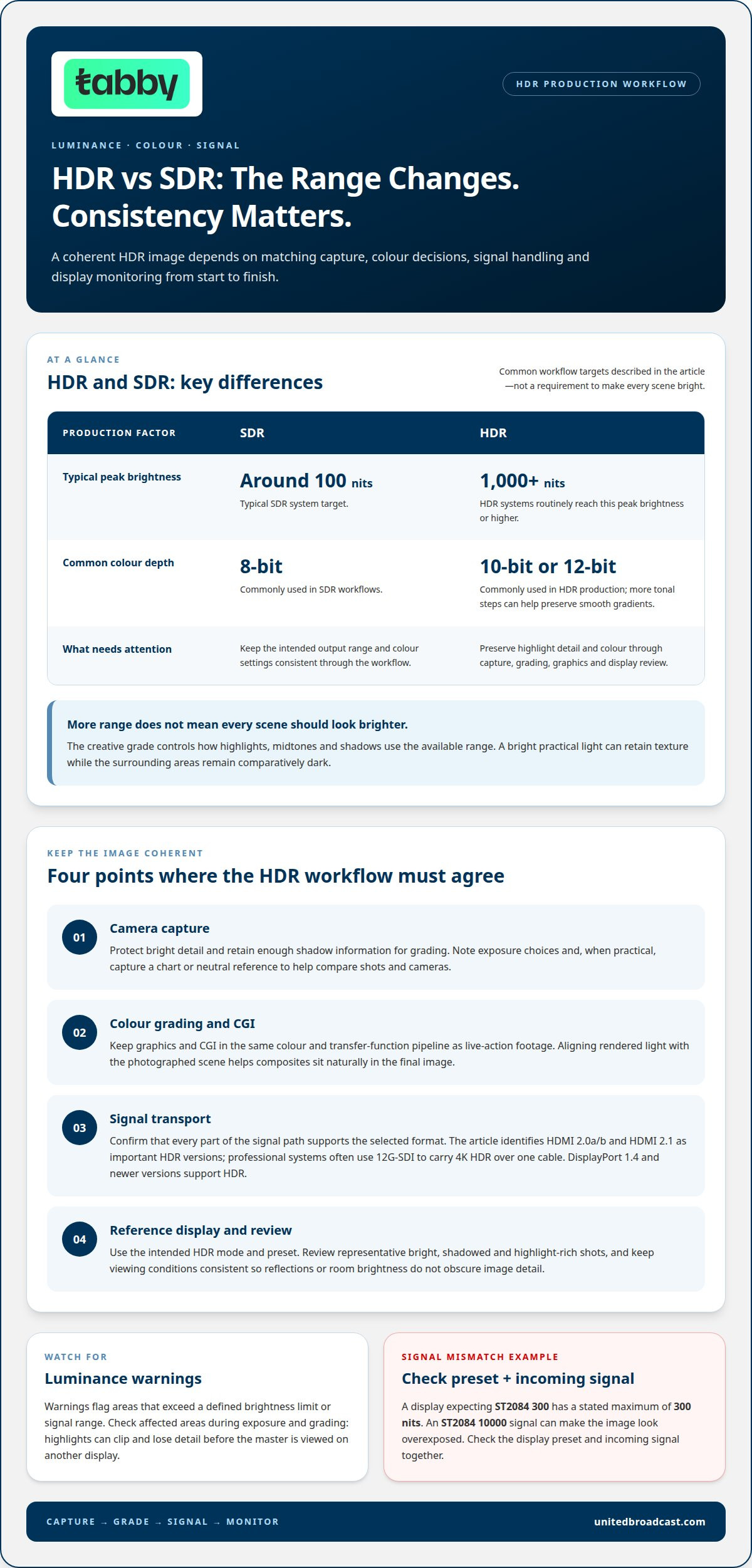
A brighter image alone doesn’t make an HDR production work. An HDR workflow for video production depends on keeping camera capture, colour decisions, CGI, signal handling and display monitoring aligned; HDR systems routinely reach peak brightness of 1,000 nits or higher, while SDR systems typically target around 100 nits. If those stages interpret luminance or colour differently, the finished image can look inconsistent from one screen to another.
It’s easy to focus on a camera’s recording format or a display’s maximum brightness, but neither tells the whole story. Colour depth, gamut, and gamma or transfer-function settings also shape how highlights, shadows, and colours are reproduced. A reference monitor helps assess these choices when configured for the production’s intended HDR standard.
This guide explains how luminance and colour precision connect to camera and display choices, what HDR10, HDR10+ and HLG change, and where CGI and reference monitoring fit. It also looks at how gamma presets and signal compatibility affect the workflow, so you can understand the decisions that keep an HDR image coherent from capture through review.
Key Takeaways
- Match camera capture, display settings and signal handling so luminance and colour remain consistent through the production chain.
- Account for CGI in the same colour and transfer-function pipeline as live-action footage to help composites sit naturally in the final image.
- Choose gamut and gamma presets to suit the intended delivery format, then apply those choices consistently across devices.
- Use a suitably configured reference monitor to assess highlight detail, shadow information and colour during review.
- Understand how HDR10, HDR10+ and HLG handle metadata and compatibility before selecting a delivery approach.
HDR luminance and colour precision
HDR depends on preserving highlight detail and colour from capture through grading and delivery. An HDR workflow for video production must align the signal’s luminance range with the display used to assess it.
SDR video systems typically target around 100 nits, while HDR systems routinely reach peak brightness of 1,000 nits or higher. Those figures describe different operating ranges, not a requirement to make every HDR scene bright. The creative grade controls how highlights, midtones, and shadows use the available range. A bright practical light can retain texture, while surrounding areas remain comparatively dark.
Colour precision matters alongside brightness. HDR production commonly uses 10-bit or 12-bit processing, compared with the 8-bit colour depth commonly used in SDR workflows. More tonal steps can help preserve smooth gradients, but each stage must handle the signal consistently. A camera recording, grading timeline, graphics element, and output display can each affect the final image if their settings differ.
Connection standards also affect signal transport. HDMI 2.0a/b and HDMI 2.1 are important versions for HDR, while professional systems often use 12G-SDI to carry 4K HDR signals over one cable. DisplayPort 1.4 and newer versions support HDR. Confirm that the signal path supports the selected format, since a compatible display cannot correct a signal altered earlier in the chain.
Luminance Warnings
Luminance warnings flag image areas that exceed a defined brightness limit or signal range. They matter because highlights can clip and lose detail before viewers see the master on another display.
Use the warning display during exposure and grading, then assess the affected image area. A clipped window may need less exposure, while a deliberate light source may remain bright if its detail and visual intent are preserved. A troubleshooting example illustrates the risk: a display expecting ST2084 300 has a stated maximum of 300 nits, while an ST2084 10000 signal can make the image look overexposed. Check the display preset and incoming signal together.
Streaming platforms, broadcasters, and social media services don’t share one HDR delivery specification. For UAE distribution, match each destination’s delivery profile, including its transfer function, metadata, colour space, and signal parameters.
HDR workflow settings in the UAE depend on the receiving broadcaster’s or platform’s delivery profile, not on one universal country setting. Keep the transfer function, metadata, and colour settings consistent with that destination.
HDR production generally involves higher workflow costs than SDR because equipment, monitoring, grading, and quality control must handle a wider luminance range and more colour information. Key cost factors include existing camera and display capabilities, calibration needs, grading requirements, and the number of deliverable versions.
Common HDR problems include clipped highlights, visible banding, incorrect metadata, and mismatched displays. Check exposure warnings, inspect gradients, validate metadata, and compare the signal with the display’s intended preset.
Tone Mapping for SDR Delivery
Tone mapping remaps HDR luminance to the narrower range used by SDR, while colour conversion adapts the image to the SDR output space. Both matter because a direct transfer can crush shadows or flatten bright details.
Create an SDR version from the graded HDR master using a deliberate conversion, then review it on an SDR display. Adjust contrast and highlight roll-off so bright areas retain useful detail without making midtones look dull. Check skin tones, saturated colours, and dark scenes separately, since each can reveal a different conversion issue. Keep the HDR master intact so the SDR version remains a controlled derivative.
Camera, display, and CGI contributions to HDR
A camera, display, and CGI render each shape the final HDR image differently. The camera records scene information, the display shows how it appears, and CGI adds elements that must belong in the same visual world. For example, rendered light from a window can look artificial beside live footage if its brightness and colour don’t match the photographed scene.
Start with the camera’s exposure and recording choices. Protect bright detail in scenes with a sunlit window, reflective metal, or a practical lamp. Retain enough shadow information for grading without making noise visible. Because camera settings affect the recorded image, note exposure choices and, when practical, capture a chart or neutral reference. These references help you compare cameras and shots later.
Matching cameras takes more than aligning exposure. One camera may render skin tones or saturated colours differently from another, even under similar lighting. Compare the cameras under the same light, then assess a neutral object and familiar colours in the image. Correct obvious differences before a multicamera edit so cuts between angles don’t introduce unwanted shifts.
The display is the viewing end of the chain. Its picture mode, brightness behaviour, and colour response influence grading decisions. For example, a vivid preset can make a restrained image appear dull by comparison. Use the intended HDR mode and review representative shots, including a bright exterior, a face in shade, and a scene with small highlights.
Viewing conditions matter too. A bright room can make shadow detail harder to judge, while reflections can obscure subtle image changes. Keep the environment consistent during review, and use the same display settings to compare a camera original with its graded version. Record the chosen settings so later review sessions use the same visual reference.
CGI needs to match the camera’s scene, not just its colour palette. A virtual object must respond plausibly to the scene’s light direction, reflections, and contrast. For example, a computer-generated chrome surface should reflect the environment visible in the live-action plate. If it reflects a brighter or differently coloured world, the composite can feel disconnected even when its edges are clean.
Keep CGI and live-action elements within the same colour-management path. Compare each render with its plate before final compositing, then check edges, shadows, and bright details in motion. A glowing graphic over a dark shot is a useful test: its halo, colour, and falloff should feel natural rather than overpower nearby objects.
These checks make the HDR workflow for video production a coordinated process, not a camera-only decision. A shot log, shared display settings, and a reviewed CGI test frame give camera, grading, and effects teams concrete references. They also help identify whether a mismatch starts in capture, monitoring, or compositing.
Color gamut and gamma presets
Colour gamut defines the range of colours a system can represent, while a transfer function describes how signal values map to brightness. In an HDR grade, both affect how saturated colours and highlights appear. A wide-gamut image can still look wrong if the display or export interprets its signal differently.
Choose the delivery colour space and transfer function before grading. This gives camera footage, graphics, and monitoring a shared target. For example, a project using PQ should not be monitored through an HLG preset: the same signal can appear with different contrast and brightness. Record the selected settings with the project so another editor can interpret the timeline consistently.
A gamma preset is not simply a brightness control. It changes the relationship between encoded values and displayed light. SDR gamma presets are designed for SDR viewing, while HDR workflows use transfer functions such as ST2084 or HLG. Selecting a mismatched preset can make midtones look too dark, highlights appear compressed, or the overall image seem washed out.
Gamut choices also affect colour decisions. A highly saturated red sign, for instance, may fit within one working space but exceed another’s displayable range. Check saturated colours on the intended output display rather than judging them only from scopes or a computer interface. Scope traces show signal behaviour; the monitor shows how the signal is rendered.
In DaVinci Resolve or Adobe Premiere Pro, set the project’s colour management and output target first. Interpret source footage correctly, then balance exposure and colour before applying the final output transform. Review the export using the intended display preset and verify that its gamut and transfer function match the delivery target.
Keep camera originals separate from transformed review files. If a proxy or reference export includes a display transform, label it clearly so editors don’t apply the transform again. A double transform can shift contrast and colour, even though the source footage remains intact.
Preset names can vary across camera, monitor, and editing software menus. Match the underlying format rather than relying on similar labels. For example, confirm that the project and monitor both use the intended PQ or HLG interpretation. Then compare neutral grey, skin tones, and a saturated object across the timeline.
For a scene destined for HDR and SDR displays, maintain a defined HDR master and create a separate SDR output. Check each version against its own output target; an SDR viewing preset is not a substitute for SDR conversion. This keeps creative adjustments tied to the correct colour space and transfer function.
Consistent gamut and preset choices help prevent one stage from silently changing the image. A written settings record, matching project configuration, and targeted review frames make mismatches easier to trace during handoffs.
HDR reference monitors
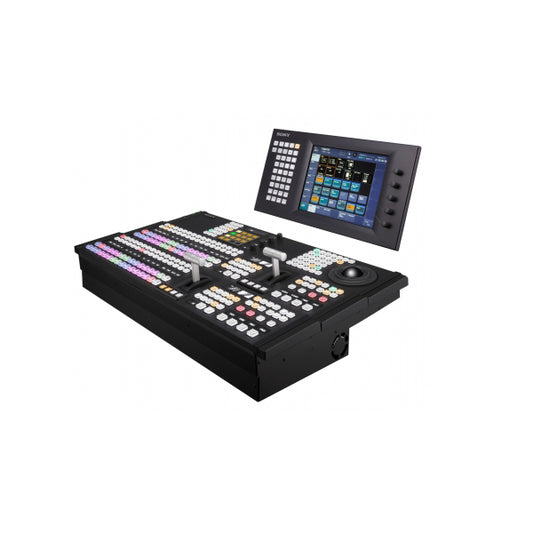
An HDR reference monitor gives colourists a controlled view during grading and review. Its purpose is not simply to make footage look vivid. It helps reveal whether highlight detail, shadow separation, and colour balance match the intended output. For example, a bright reflection should retain the texture visible in the graded image rather than becoming a featureless patch.
Start by matching the monitor’s picture mode to the project’s output format. A PQ grade needs a PQ display mode; an HLG grade needs an HLG mode. A mismatch can change perceived contrast and brightness, prompting corrections that compensate for the monitor instead of improving the image. Record the selected mode with the project settings for consistent review.
Next, inspect the signal path from the grading system to the screen. Confirm that the output device and monitor interpret the same transfer function and colour space. Check the monitor’s input status, then display a known test pattern or reference frame. If a grey ramp shows unexpected steps, investigate the source signal, output configuration, and monitor processing before adjusting the grade.
Calibration helps make the display’s response more predictable. Use the monitor’s calibration controls or a supported calibration process, then assess neutral greys and colour patches. A tinted neutral grey can mislead white-balance decisions; a saturated red patch can reveal colour handling that needs review. Revisit calibration after changing the display mode or signal configuration.
Room conditions also affect what the monitor reveals. Reflections can hide shadow detail, while changing ambient light can alter the image’s perceived appearance. Keep the viewing environment stable during grading and position the screen to reduce glare. For example, compare a dark interior and a sunlit exterior under the same room conditions before approving their contrast.
Scopes provide a second reference, not a replacement for visual monitoring. Use a waveform to inspect signal levels and a vectorscope to assess colour direction and saturation. If the waveform shows compressed highlights while the monitor appears bright, check the output transform and display mode. Reading both the image and scopes can help locate the source of a mismatch.
Consumer displays can provide a useful secondary check, but their picture processing may change the image. Features that alter contrast, sharpness, or colour can make a grade look different from the reference view. Compare the same frame on both screens and note whether the difference comes from display settings or the graded signal.
Before a review session, follow a repeatable check: select the correct HDR mode, confirm the input format, inspect a test pattern, and review representative frames. Include skin tones, deep shadows, bright practical lights, and saturated graphics. These examples reveal different monitoring issues and make feedback more specific than a general request to brighten the image.
HDR in Video: HDR10, HDR10+, Dolby Vision, and HLG
HDR describes a production and delivery approach that preserves a wider range of brightness and colour than standard dynamic range. The format chosen affects how a master carries image information to compatible displays. HDR10, HDR10+, Dolby Vision, and HLG differ in metadata handling and intended use, so format choice shapes grading, monitoring, and delivery decisions.
HDR10 uses static metadata to describe brightness characteristics for an entire programme. The same metadata applies across scenes, even when a film moves from a bright exterior to a dark interior. This approach suits a master with consistent programme-level instructions, but it doesn’t adjust those instructions for each individual scene.
HDR10+ adds dynamic metadata, allowing brightness adjustments scene by scene. That distinction matters in a sequence where a sunlit landscape cuts to a dimly lit room. Scene-level adjustments can guide compatible displays through those changing conditions. The creative grade still defines the image; metadata communicates how the display should interpret it.
Dolby Vision is another HDR delivery format associated with dynamic metadata. Its metadata can guide display rendering across changing content, making it a distinct option from HDR10’s programme-wide static metadata. Production teams should treat the format as a delivery decision, not simply a camera setting. The selected master, metadata, and playback support must work together.
HLG, or Hybrid Log-Gamma, supports HDR and SDR compatibility in a single signal and doesn’t require metadata management. That can suit live transmission, where one feed may need to serve different display types. HLG can also suit post-produced content, making it an option for both live and edited programmes.
HDR workflows commonly use 10-bit or 12-bit processing, compared with the 8-bit colour depth commonly used in SDR workflows. That processing helps retain gradations through a wider image range, but the format still needs a consistent signal path. A master interpreted with the wrong transfer function can display incorrectly, regardless of its metadata.
Compare the formats by their workflow implications:
- HDR10: Static metadata describes programme-level brightness characteristics.
- HDR10+: Dynamic metadata enables scene-by-scene brightness adjustments.
- Dolby Vision: Dynamic metadata supports display rendering across changing content.
- HLG: One signal supports HDR and SDR compatibility without metadata management.
Choose the format around the delivery destination and production type. For live content, HLG’s single-signal compatibility may be useful. For a graded programme, compare HDR10’s static approach with dynamic-metadata options. Then check that the edit, master, and intended playback path use matching settings.
United Broadcast & Media Solutions (UBMS): Professional Video Cameras
United Broadcast & Media Solutions (UBMS) supplies professional video and digital cinema cameras for production teams. For an HDR project, align camera choice with the intended recording format, lighting conditions, lens requirements, and post-production pipeline. Cinema lenses and professional lighting equipment can also support consistent image capture across planned scenes.
Turn to UBMS when evaluating camera equipment for a new HDR setup or refining an existing production system. Matching capture tools to monitoring and delivery requirements helps teams make informed equipment decisions without treating the camera as a standalone solution.
Contact United Broadcast & Media Solutions or visit unitedbroadcast.com to discuss your production equipment needs.
Build your next HDR pipeline with intent
Your next step is to turn the creative brief into a practical equipment and monitoring plan. Define the delivery format, identify scenes that will challenge exposure or colour, and map how footage will move from capture to review. This makes the HDR workflow for video production easier to assess as a complete system rather than a set of isolated technical choices.
United Broadcast & Media Solutions (UBMS) supplies professional video cameras, digital cinema cameras, and cinema lenses for production teams developing that plan. Consider how camera and lens choices fit your capture requirements and support the look you want to create. A focused discussion can connect equipment decisions to your production’s demands.
With a clear plan and sound technical decisions, your team can move into production with greater purpose and confidence.
Frequently Asked Questions
What equipment is needed for an HDR video production workflow, including cameras, monitors, and scopes?
A practical setup needs an HDR-capable camera, a display that can show the intended HDR format, and waveform and vectorscope monitoring. The camera records the scene; scopes help assess signal levels and colour; the display supports visual review. Add a signal path that carries the selected format without changing its interpretation. For a multicamera shoot, use matching recording and monitoring settings to make camera cuts easier to evaluate.
How should cameras be configured to capture HDR video, including log profiles, bit depth, and color sampling?
Configure each camera for the project’s delivery target, and keep settings consistent across camera bodies. Choose a log profile supported by the camera and grading pipeline, then confirm the recording’s bit depth and colour sampling in its format settings. HDR workflows commonly use 10-bit or 12-bit processing, compared with 8-bit in SDR workflows. Record a test clip and inspect gradients, highlights, and shadow detail before the main shoot.
How do HDR workflows use Rec. 2020, Rec. 2100, PQ, and HLG color spaces and transfer functions?
Rec. 2020 and Rec. 2100 identify colour-related standards used in HDR signal workflows, while PQ and HLG describe transfer functions. PQ represents brightness using the ST2084 transfer function; HLG supports HDR and SDR compatibility in one signal without metadata management. In post, set the project and output interpretation to match the intended format. A mismatch between the timeline and display can change perceived contrast and colour.
How do you calibrate and monitor an HDR reference display, and what peak brightness and color gamut are required?
Set the display to the project’s intended HDR mode, calibrate its response, and verify the signal path with test patterns and representative footage. HDR systems routinely reach peak brightness of 1,000 nits or higher, but the required display capability depends on the mastering target. Choose a gamut that matches the delivery specification rather than assuming one coverage figure suits every project. Review neutral tones, saturated colours, highlights, and shadows.


