

MEAD-SD02 operating instructions and manual details
The manual is compact, but careful operation matters. Consult the operating instructions before using the adaptor with compatible equipment. When using the adaptor with XDCAM EX hardware, take care not to power off the equipment during recording, as SD card media may be less reliable than SxS media.
It’s easy to focus on fitting the adapter and starting a recording, but card compatibility and recording mode also affect performance. This guide covers key precautions, supported card types, device compatibility and relevant specifications.
You’ll also find the manual’s file size and release date in one place, making it easier to identify the document and understand what to consider before a shoot. The aim is a clear, practical reference for preparing the MEAD-SD02 and using it with compatible equipment.
Key Takeaways
- The adaptor uses an ExpressCard/34 interface and accepts one SDHC or SDXC card.
- Recommended card types include Class 10 SDHC and UHS speed class 1 SDXC, but SDXC operation isn’t guaranteed on listed XDCAM EX devices.
- SD card speed limitations make the adaptor unsuitable for slow-motion recording.
- Some XDCAM EX hardware may need a firmware upgrade for compatibility.
- The supported-device list is dated February 2013, so use it as a reference when assessing older equipment.
MEAD-SD02 operating instructions
The MEAD-SD02 adapts SD media for compatible XDCAM EX equipment, with card choice and recording mode affecting use. The Sony operating-instructions PDF is 711 KB and has a release date of 11/20/2019.
MEAD-SD02 Adapter Overview
The Sony MEAD-SD02 is an ExpressCard/34 adapter that lets compatible XDCAM EX equipment use SD cards. Insert a compatible card into the adapter, then seat the adapter in the host device’s media slot. Confirm the equipment recognizes the media before starting a recording. The adapter provides a media interface; it doesn’t convert recording formats. Stop recording before switching off the camera or recorder.
SD and SDHC Card Compatibility
Card compatibility describes which SD media the adapter and host equipment can use. The MEAD-SD02 accepts one SDHC or SDXC card; recommended choices include Class 10 SDHC and SDXC with UHS speed class 1. However, listed XDCAM EX devices support only SDHC media, and operation with SDXC media isn’t guaranteed. For those devices, choose SDHC rather than relying on SDXC compatibility.
Recording Formats and Limitations
Recording format refers to the video mode selected on the compatible XDCAM EX equipment, while the MEAD-SD02 supplies the media interface. Use a format supported by the host device; the adapter isn’t a format converter. The adaptor isn’t recommended for slow-motion recording because SD card speed limitations can affect that mode. Compared with SxS media, the adapter and SD cards are slightly less reliable. SxS is the alternative to consider when media reliability is the priority.
Common Problems and Troubleshooting
Troubleshoot in sequence: check the card, adapter and host compatibility. If the recorder doesn’t recognize the card, confirm it’s a supported SDHC card, then reseat both the card and adapter. If the problem continues, check whether the XDCAM EX hardware requires a firmware upgrade. For slow-motion recording, choose another supported approach rather than expecting an SD card to overcome its speed limitations. Never power off XDCAM EX hardware while recording. Stop the recording first to reduce media risk.
What is the Sony MEAD-SD02 adapter?
The Sony MEAD-SD02 adapter is a removable media interface for compatible XDCAM EX equipment. It lets the host device use an SD card through its ExpressCard slot. The Sony MEAD-SD02 and the card have separate roles: the card stores recorded media, while the adapter connects it to the recorder.
The Sony MEAD-SD02 uses an ExpressCard/34 interface. It measures approximately 34 mm × 5 mm × 75 mm and weighs approximately 20 g, excluding the SD card. These dimensions describe the adapter’s physical form, but they don’t establish compatibility with every device that has a slot.
In a recording workflow, the camera or recorder captures and manages footage. The adapter provides the connection to the inserted media. It isn’t a standalone recorder or a format converter. For example, placing an SD card in the Sony MEAD-SD02 won’t make an incompatible camera support that media.
The adapter’s operating environment also matters. The adapter has operating limits that should be considered during use. Its operating humidity range is 20% to 90%, with no condensation allowed. These ranges apply to the adapter and don’t establish identical environmental limits for the card or host device.
Think of the MEAD-SD02 as one component in the camera’s media path. The card stores footage, and the XDCAM EX device handles recording. Keeping those roles distinct helps narrow a recognition problem to the card, adapter connection, or host compatibility instead of treating the whole setup as one component.
For setup planning, identify the host device and its media slot, then consider the adapter and card as connected parts of the workflow. The interface and operating ranges help describe the adapter’s role, while the host’s compatibility determines whether the combination can be used. For wider camera-system planning, send an equipment enquiry.
Sony MEAD-SD02 specifications and compatibility
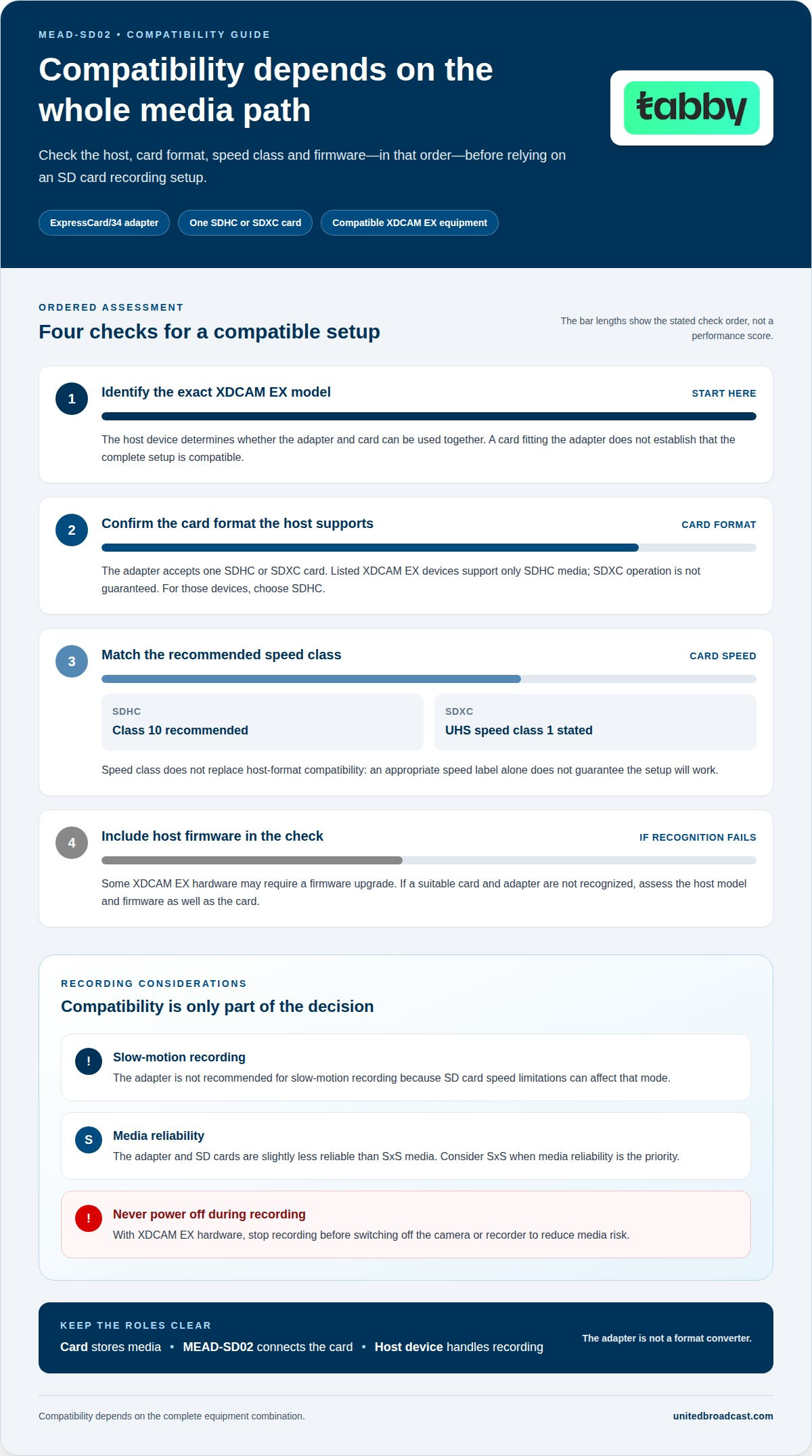
Compatibility describes whether the adapter, card, and XDCAM EX hardware operate together as a recording setup. The Sony MEAD-SD02 accepts one SDHC or SDXC card, but the host device determines which format is appropriate. Check the exact recorder model and its media support before choosing a card. A card fitting the adapter doesn’t establish that the complete setup is compatible.
The recommended SDHC card speed class is Class 10. For SDXC, the stated supported speed class is UHS speed class 1. These labels describe card categories, not universal compatibility across XDCAM EX equipment. Listed XDCAM EX devices support only SDHC media, and operation with SDXC media isn’t guaranteed. For those devices, use the supported SDHC format rather than assuming SDXC will work.
Firmware is a separate consideration. The Sony MEAD-SD02 may require a firmware upgrade on XDCAM EX hardware. If the equipment doesn’t recognize an otherwise suitable setup, assess the host model and firmware alongside the card format. Changing cards alone may not address a firmware-related compatibility issue. Keep these factors distinct during troubleshooting.
Use this sequence to assess a setup:
- Identify the exact XDCAM EX camera or recorder model.
- Determine which card format that device supports.
- For supported SDHC media, select the recommended Class 10 speed class.
- For SDXC, use UHS speed class 1 only with equipment that supports SDXC operation.
- If recognition fails, include the host firmware in the compatibility assessment.
This sequence separates card format from card speed. For example, a Class 10 SDHC card meets the stated speed-class recommendation, but the host must still support the adapter. An SDXC card with UHS speed class 1 meets its stated speed category, yet SDXC operation isn’t guaranteed on listed XDCAM EX devices. Sony MEAD-SD02 compatibility depends on the complete equipment combination.
Recording mode matters when choosing a setup. The adapter isn’t recommended for slow-motion recording because of SD card speed limitations. A speed-class label alone doesn’t establish suitability for every recording mode. Consider the planned mode alongside the card and host device.
Use the Sony MEAD-SD02 where host support, card format, and recording mode align. If one part of the combination changes, reassess the setup rather than treating physical fit as proof of compatibility. This approach helps operators identify whether a problem relates to the device, media format, firmware, or recording mode.
Which Sony camcorders and recorders support the MEAD-SD02?
A compatible device is a Sony camcorder or recorder identified for use with the MEAD-SD02. The supported-device list is stated to be current as of February 2013. Treat that date as the reference point, not as proof that every XDCAM EX product or later device supports the adapter. Match the exact equipment model against the relevant list before planning a recording workflow.
Identify the exact model: product-family names can refer to different equipment. Note the full designation on the camera or recorder, then compare it with the supported-device entries. Identifying a unit only as an XDCAM EX device, for example, may not distinguish it from other models in the family. An ExpressCard connection alone doesn’t establish host compatibility.
The February 2013 date also limits how the list should be interpreted. It provides a dated snapshot of supported equipment, rather than a current statement about every Sony model. A later release date for an operating-instructions PDF doesn’t change the stated date of the compatibility list. Keep those two document dates separate when evaluating a setup.
Use this model-checking sequence:
- Read the complete model designation from the Sony camcorder or recorder.
- Compare the designation with the MEAD-SD02 supported-device list dated February 2013.
- Distinguish a listed model from a device that shares only the XDCAM EX family name.
- For XDCAM EX hardware, account for the possibility that a firmware upgrade may be required.
Check three things separately: whether the model appears on the list, whether its firmware supports the adapter, and whether the planned recording media suits the device. A match on the dated list addresses model compatibility, but firmware remains a separate consideration. Likewise, a card that fits the adapter doesn’t prove the host recorder supports the full setup.
For production planning, document the model designation alongside the media arrangement. That record helps distinguish an equipment mismatch from a card-format or firmware issue if the adapter isn’t recognized. On a multi-camera shoot, assess each Sony unit individually rather than assuming identical family branding means identical compatibility. The February 2013 list remains the key dated reference for identifying supported camcorders and recorders.
What SD and SDHC card types and capacities work with the Sony MEAD-SD02?
Card compatibility depends on the media format, speed class, and host device working together. The Sony MEAD-SD02 accepts one SDHC or SDXC card at a time. Recommended media includes Class 10 SDHC cards and SDXC cards with UHS speed class 1. These recommendations describe suitable card categories, while the camcorder or recorder determines which format it supports.
For listed XDCAM EX devices, the supported media type is SDHC. Operation with SDXC media isn’t guaranteed on those devices, even when an SDXC card carries UHS speed class 1. The card’s physical fit in the adaptor doesn’t establish that its format will work with the host. Keep format and speed class as separate compatibility checks.
Consider capacity alongside these checks, not instead of them. A card’s capacity label doesn’t tell you whether the recorder supports its format or whether it suits the planned recording mode. Choose media based on the host device’s support and recording requirements, rather than assuming a larger card will work because it fits.
Use these criteria when selecting a card:
- For a listed XDCAM EX device, use SDHC media with the recommended Class 10 speed class.
- Use SDXC media with UHS speed class 1 only with equipment that supports SDXC operation.
- Remember that the adaptor accepts one card at a time.
- Don’t rely on SD card media for slow-motion recording, which isn’t recommended because of speed limitations.
For example, a Class 10 SDHC card meets the stated speed-class recommendation, but the host device still needs to support the adapter. An SDXC card with UHS speed class 1 meets its stated speed category, yet it doesn’t ensure SDXC operation on listed XDCAM EX devices. With the Sony MEAD-SD02, card format and host support must be considered together.
Before setting up to record, identify the camera or recorder model and match its supported media format to the card. Consider the recording mode too: a compatible format doesn’t overcome the SD speed limitation for slow motion. If the combination isn’t recognized, reassess the card format and device compatibility before changing other parts of the workflow. This gives you a sound basis for choosing media without treating capacity as the only deciding factor.
United Broadcast & Media Solutions (UBMS)
United Broadcast & Media Solutions (UBMS) helps production teams plan and maintain professional equipment systems. If MEAD-SD02 compatibility questions lead you to review broader camera or studio requirements, its professional video cameras, digital cinema cameras, cinema lenses, professional lighting equipment, and broadcast studio gear support those equipment decisions.
Turn to UBMS when your camera system needs integration or professional equipment needs repair. UBMS provides system integration for connected equipment workflows, and its service center repairs professional equipment. These services are relevant when your needs go beyond choosing an SD card or identifying a compatible recorder.
Build a recording workflow that fits your next project
Use the Sony MEAD-SD02 decision as one part of a broader equipment plan. Consider how your existing camera setup, media workflow, and production requirements need to work together. That perspective helps keep an accessory choice aligned with the way your team records and manages footage.
If you’re planning a change to your setup, first define the practical need. You may be maintaining an existing workflow, evaluating camera equipment or considering how components fit together. Clarifying the requirement gives the discussion a useful starting point and keeps attention on the relevant technical priorities.
United Broadcast & Media Solutions can discuss your professional equipment requirements and system needs. Share the context of your setup and the decision you’re considering to start a practical conversation. You don’t need to have every detail settled before taking that step.
With a clear requirement and appropriate technical guidance, you can move forward with a better understanding of your production workflow.
Frequently Asked Questions
How do I install and use the Sony MEAD-SD02 adapter?
Install the Sony MEAD-SD02 with a compatible card inserted, then seat it in the host device’s ExpressCard slot while the equipment isn’t recording. Confirm that the camcorder or recorder recognizes the media before shooting. If it doesn’t, reassess model compatibility and firmware support. Use SDHC media with listed XDCAM EX devices, and stop recording before powering down. If recognition fails, inspect the card and adapter connection separately.
How do I format an SD card for the Sony MEAD-SD02?
Format the card using the media-format control on a compatible camera or recorder, and follow the device’s instructions. The adapter provides the connection, not the format control. Copy any recordings you want to keep before formatting, as formatting removes the card’s contents. For listed XDCAM EX devices, use SDHC media rather than assuming SDXC will work reliably. If the device doesn’t recognize the card, reassess the format and host compatibility before trying again.
Sony MEAD-SD02 user reviews and reliability
The MEAD-SD02 and SD card media are slightly less reliable than SxS media. Stop recording before powering off XDCAM EX equipment to reduce media risk.


