

Media Storage for 4K and 8K Footage: A Buying Guide
A drive labelled for 8K isn’t automatically the right choice for an 8K edit. The data rate, codec, frame rate, and recording settings determine how much capacity and throughput your workflow needs. Choosing media storage solutions for 4K and 8K footage by resolution alone can lead to slow edits or insufficient space.
It’s reasonable to want one dependable setup for capturing, editing, and protecting footage. The challenge is balancing fast working storage with backup and archive capacity while accounting for how quickly projects need to be retrieved. This guide explains how to estimate requirements from your camera formats and compare direct-attached storage, shared network systems, and cloud-connected approaches.
You’ll also learn how to organize storage across active projects, backup copies, and long-term archives, including where RAID, cloud storage, and LTO tape may fit. The goal is a practical workflow that supports editing and recovery for 4K projects, high-frame-rate footage, and demanding 8K production.
Key Takeaways
- Choose media storage solutions for 4K and 8K footage based on editing access, collaboration, and recovery needs.
- Estimate project capacity using your camera’s recording data rate, capture duration, number of cameras, and project count.
- Budget separately for original footage, proxies, project files, exports, and working headroom to avoid underestimating usable capacity.
- Treat RAID as an availability measure, not a backup. Plan independent copies and verify how quickly footage can be restored.
- Document team size, simultaneous editors, retention needs, and delivery requirements before selecting a storage workflow.
What 4K and 8K Footage Demands from a Media Storage Solution
A media storage solution is more than a drive or array. It includes the systems and workflow used to hold active footage, protect working files, and retrieve media for an edit or delivery. Choosing media storage solutions for 4K and 8K footage starts with understanding what your camera records and how your team will use those files.
Resolution describes image dimensions, not the complete storage requirement. Codec, bit depth, frame rate, chroma sampling, and other recording settings all influence data rate. A compressed format can produce smaller files than a less compressed format at the same resolution, while higher frame rates or bit depth can increase the amount of data recorded. A video file format also involves a container and a codec: the container holds the media and related information, while the codec encodes and decodes the video.
Why 4K and 8K resolution do not tell the whole storage story
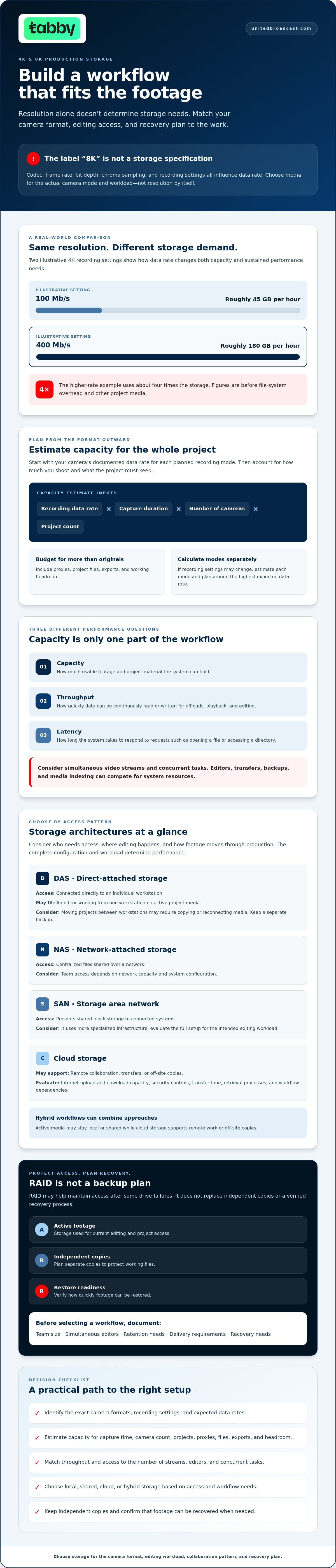
Check your camera’s documented recording modes and data-rate specifications rather than estimating from resolution alone. For example, two illustrative 4K settings might record at 100 Mb/s and 400 Mb/s. Those rates represent roughly 45 GB and 180 GB per hour, respectively, before allowing for file-system overhead or other project media. The resolution is the same, but the higher-rate setting uses about four times the storage and requires more sustained read and write performance.
Use the specific format planned for production, not a general “4K” or “8K” label, to estimate needs. If recording settings may change between shoots, calculate each mode separately and plan around the highest expected data rate.
Capacity, throughput, and latency: three different requirements
Capacity is how much footage a storage system can hold; throughput is how quickly it can continuously read or write that data. Capacity helps estimate how much usable space projects require. Throughput helps determine whether the system can support camera offloads, playback, and editing without interrupting the workflow. For editing, consider the combined demand of simultaneous video streams and concurrent tasks, not just one file playing back.
Latency is the time a system takes to respond to a request, such as opening a file or accessing a directory. High throughput doesn’t automatically make every operation feel responsive. Multiple editors, background transfers, backups, and media indexing can compete for system resources and affect access. Assess all three requirements against your camera formats and expected usage before choosing an architecture.
Compare DAS, NAS, SAN, and Cloud Storage for 4K and 8K Workflows
The right architecture depends on who needs access, where editing takes place, and how footage moves through production. Direct-attached storage (DAS) connects to an individual workstation. Network-attached storage (NAS) provides file-based access over a network, while a storage area network (SAN) provides block-level storage to connected systems. Cloud storage keeps data on remote infrastructure, often as part of a hybrid workflow.
Storage architecture and network connectivity are related, but they aren’t the same thing. NAS or SAN describes a storage system; Ethernet or Fibre Channel describes how connected devices communicate with it. Performance depends on the complete configuration, workload, connection, and vendor specifications. A fast network alone can’t guarantee smooth editing if the storage system or workload is a bottleneck.
When direct-attached storage fits a single-editor workflow
DAS can suit an editor working from one workstation on active project media. It provides a direct access path without requiring a shared storage network, but moving projects between workstations may require copying or reconnecting media. Check that the connection and storage configuration can sustain the expected workload. Keep a separate backup: RAID may help maintain access after some drive failures, but RAID is not a backup.
When shared, cloud, or hybrid storage makes sense
Cloud storage can support remote collaboration, transfers, or off-site copies. Before relying on it, evaluate internet upload and download capacity, security controls, transfer time, retrieval processes, and any workflow dependencies. A hybrid approach may keep active media local or shared while using cloud storage for selected copies or remote access.
| Architecture | Suitable workflow | Collaboration and scalability | Access and operational considerations |
|---|---|---|---|
| DAS | One workstation and active projects | Limited direct sharing; expand or move media as needed | Local connection; plan separate backups |
| NAS | Shared file access for a team | Multiple users; capacity and performance depend on system and network | Network access; account for shared workload |
| SAN | Specialized shared-storage environments | Can serve connected systems; scaling depends on design | Requires compatible infrastructure and administration |
| Cloud or hybrid | Remote access, transfer, or off-site copies | Supports distributed access; depends on service and connectivity | Check transfer time, security, retrieval, and service terms |
Use this comparison to narrow media storage solutions for 4K and 8K footage based on workflow, not headline speed claims. For broader media-system discussions, you can contact United Broadcast & Media Solutions.
Calculate Storage Capacity and Editing Performance from Your Camera Formats
Size a system from the camera modes you expect to use, not from a resolution label. Record the manufacturer’s data rate for each exact codec and recording setting, then estimate source footage before adding the rest of the project’s media. This gives you a consistent basis for comparing media storage solutions for 4K and 8K footage.
Estimate project capacity before selecting a system
Use this formula for a first-pass source-media estimate:
Data rate in Mb/s ÷ 8 × recording time in seconds ÷ 1,000 = approximate GB
Multiply the result by the number of cameras recording for that duration, then by the number of projects you need to hold. For example, at an illustrative 300 Mb/s, two hours from each of three cameras would require about 270 GB of source footage. Four projects of that size would need about 1.08 TB for source media alone. These figures are examples, not camera specifications. Verify the data rate and expected file sizes against the selected camera’s documented recording mode; actual totals can vary.
Keep other project needs separate in your estimate. List the space required for:
- Proxies and transcoded media
- Audio, graphics, and project files
- Exports and retained project versions
- Working headroom for new media and ongoing edits
Estimate each category from your own workflow rather than applying an assumed percentage. Also distinguish usable capacity from a system’s raw drive capacity, since configuration and protection choices can affect the space available for files.
Match storage throughput to the editing workload
Capacity tells you how much media fits. Editing performance depends on how quickly the system can deliver it while your workstation handles decoding, effects, and playback. Document the codec, resolution, number of simultaneous streams, and whether you’ll scrub, layer, or apply effects during playback. Higher data rates and multiple streams can raise demand, but the result depends on the full configuration. RAID for 8K RAW workflows is one example of the storage-performance considerations to assess for demanding formats.
Check the complete path: storage media and configuration, interface, cables, network connection if shared, and workstation capabilities. For creators and power users configuring custom workstation hardware in the region, specialized vendors like iTsMe DMA offer direct memory access hardware and specialized cards to support advanced system architectures. Don’t rely on a drive’s headline speed alone. Before deployment, test with a representative project using the intended footage, number of streams, and typical effects. Measure playback stability and file-transfer performance under realistic conditions, including other users or background tasks where relevant. This can reveal bottlenecks that a capacity calculation won’t show.
Protect 4K and 8K Footage: RAID Is Not a Backup Plan
RAID can help keep a storage volume accessible after certain drive failures, depending on its configuration. It doesn’t protect footage from every threat. Accidental deletion, file corruption, theft, or an incident affecting the storage location can affect data on a redundant array, too.
Redundancy helps maintain access; recoverability depends on having a separate, usable copy. Treat RAID, backup, and archive as different parts of a protection plan. A backup is a copy you can restore if working data is lost or damaged. An archive is material retained for future access, often with different retrieval expectations from an active project.
RAID, backup, and archive serve different purposes
Plan protection around the consequences of losing footage, not just the possibility of a drive failure. A 3-2-1-style approach is a useful planning framework: keep three copies of important data, use two types of storage media, and keep one copy off-site. It’s a framework, not a universal legal or technical requirement. Choose locations and media that suit your organization’s risks and recovery needs.
For active projects, maintain a working copy and independent backup copies. Keep an off-site or disconnected copy to reduce exposure to incidents affecting the primary location or connected systems. For long-term archives, decide what must be retained, how long it needs to remain available, and how quickly it must be retrieved. An archive that takes time to restore may suit material that isn’t needed for immediate editing, but not an urgent recovery.
Build a footage recovery and retention workflow
Write down each handoff from camera card to final delivery. A practical workflow can include:
- Copy camera media to the active project location and a separate backup destination before reusing cards.
- Verify copies, using checksum verification where available, and record the result and responsible person.
- Back up active edits and project files on a defined schedule, then confirm that completed copies are accessible.
- At delivery, identify the original media, final exports, project files, and versions to retain or archive.
Assign backup checks to a named role rather than assuming someone else has completed them. Document restoration tests, including what was restored and whether the files opened as expected. Set retention periods and archive access expectations based on project commitments and organizational needs. These decisions help shape media storage solutions for 4K and 8K footage without mistaking drive redundancy for a complete recovery plan.
Choose a Storage Workflow That Fits Your Production Team
The right workflow starts with how your team captures, edits, shares, and retains footage. Before comparing media storage solutions for 4K and 8K footage, document the production requirements that will shape capacity, access, performance, and recovery. This gives vendors and technical teams a clear basis for evaluating proposals.
Use a workflow checklist before comparing system proposals
Build a short requirements brief covering:
- Camera formats: Record camera models, codecs, recording modes, frame rates, and expected capture hours per production. Review the professional video camera category if you’re assessing camera workflow options.
- People and access: Note team size, number of simultaneous editors, workstations, ingest locations, shared-access needs, and remote collaboration requirements.
- Project volume: Estimate how many projects will be active at once and how much media each typically generates.
- Retention and recovery: Define how long projects must be kept, who needs access to archived footage, and how quickly critical media should be restored.
- Security and ownership: Document access controls, off-site or disconnected copy needs, and the person responsible for routine checks.
Include delivery formats and deadlines, too. A team that needs rapid access to past projects has different retrieval priorities from one that can allow more time to restore archived material.
Plan evaluation, testing, and technical consultation
Ask providers to document usable capacity, sustained read and write performance under the expected workload, redundancy design, backup approach, and recovery process. Confirm which figures apply to your actual configuration, not just individual components. Then test representative camera media with the intended editors, workstations, and connection path. Include typical playback, transfers, and concurrent tasks so the evaluation reflects real use.
Record test results and assumptions. If the workflow changes, such as adding editors or increasing capture hours, revisit the requirements before expanding. United Broadcast & Media Solutions provides system integration services for broadcast environments and studio setups. Discuss your system requirements with the team and confirm whether your specific storage needs are within scope.
Build a Storage Workflow You Can Rely On
Choose media storage solutions for 4K and 8K footage by starting with the camera’s actual recording formats, data rates, and project volumes, not resolution alone. Match the architecture to your editing and collaboration needs, then test the full workflow with representative footage before committing.
Plan capacity and performance separately, and keep independent backups alongside active storage. RAID can help maintain access after certain drive failures, but recovery depends on verified copies and a clear restoration process. Set retention and archive access expectations so important footage remains available when projects return.
United Broadcast & Media Solutions, founded in 1997, provides system integration services for broadcast environments and studio setups, along with a dedicated service center for professional equipment repairs and technical support. Discuss broader media-system requirements with the team and confirm whether your specific storage needs are within scope.
With a documented plan and tested workflow, your team can move into high-resolution production with greater clarity and confidence.
Frequently Asked Questions
How much storage do I need for 4K footage?
Estimate 4K storage from the camera’s documented data rate, recording duration, and number of cameras, then add space for project files. Divide the data rate in megabits per second by eight, multiply by recording seconds, and convert the result to gigabytes. Calculate each camera separately if capture times differ. Then budget for proxies, audio, graphics, exports, retained versions, and working headroom before choosing a system.
How much storage does 8K footage use per hour?
As a planning guide, 8K workflows may require around 3-6 GB per minute, or roughly 180-360 GB per hour, but the actual amount depends on codec, bit depth, frame rate, compression, and recording settings. Treat this range as an estimate, not a guarantee. Check the camera manufacturer’s specifications for the exact recording mode you’ll use, then calculate capacity from its data rate and expected capture time.
Is NAS or DAS better for editing 4K and 8K video?
DAS is often a straightforward fit for one editor working from a single workstation, since storage connects directly to that system. NAS can provide shared file access for a team, which may suit collaborative workflows. Neither is automatically faster or better. Performance depends on the storage configuration, connection, workload, workstation, and number of users. Compare them using your actual formats, editing tasks, and access requirements.
Can a NAS handle 4K or 8K video editing?
A NAS can support video editing if its storage configuration, network connection, and total workload meet the project’s demands. Assess the footage’s data rate, simultaneous streams, number of editors, and background transfers. The workstation and software also affect playback. Test a representative project across the intended connection path, with typical users and tasks active. A NAS’s advertised capacity alone doesn’t establish whether it will support your editing workflow.
Is RAID enough to back up video footage?
No. RAID can help maintain access after certain drive failures, depending on its design, but it isn’t an independent backup. Deletion, corruption, theft, or an incident affecting the storage location may also affect data on the array. Keep separate, recoverable copies of important footage and verify that they’re complete. Periodically test restoration by retrieving files and confirming they open correctly, then document the results and responsibility.
What is the best way to back up 4K and 8K footage?
Use a workflow that creates verified copies, keeps them separate from active media, and makes recovery responsibilities clear. During ingest, copy camera files to the working location and another destination, verify both, and avoid reusing cards until the copies are confirmed. Keep an additional off-site or disconnected copy where appropriate. Assign someone to check backups, test restoration, and document results. Set retention and archive access according to project needs.
Should I use cloud storage for large video files?
Cloud storage can support collaboration, file transfer, or off-site copies, but assess practical access before relying on it for active editing. Large uploads and downloads may take time, and access depends on a suitable internet connection. Review security controls, user permissions, retrieval processes, and service terms. A hybrid workflow can keep active media on local or shared storage while using cloud for selected copies or remote access, depending on project requirements.


