

How to Set Up Remote Camera Control for Apps and Portals
A remote camera is useful only when its video reaches the person who needs to see it. Remote camera monitoring sends live footage over a wired or wireless network to a server or cloud service, where it can be viewed through an app or web portal. Setting up remote camera control systems means connecting compatible cameras, network access and control software, then testing device discovery, live viewing and remote functions.
The process involves more than installing a camera and opening an app. The network, recording or server setup, user permissions and camera controls all need to work together, while security settings protect access. This guide explains how to plan the system, find cameras on the network, configure app and browser access, and test the full setup. It also covers components, upgrades, security and troubleshooting to help you make informed decisions for a professional environment in the UAE.
Key Takeaways
- Understand how a remote camera sends footage for off-site viewing and which system components make that possible.
- Prepare the network and camera settings so discovery and registration lead to reliable access.
- Configure app and web portal access around the viewing, playback and control functions your workflow needs.
- Improve system security and stability with considered upgrades, secure access practices and routine maintenance.
- Learn how to diagnose common connectivity and video-quality problems before relying on the setup.
What is Remote Camera Monitoring?
Remote camera monitoring sends live footage across a network to a server or cloud service for remote viewing. Follow these steps to plan connectivity, install cameras and test each part of the video path.
-
Check Bandwidth and Network Requirements
Map the route from each camera to its viewer before choosing a connection. A local network keeps video within the site, while cloud access routes footage through an internet-connected service. Cellular connectivity may suit locations without wired internet, provided coverage can support the camera’s video stream.
For reliable remote control, assess upload capacity, stream resolution, frame rate and the number of simultaneous viewers. Each active stream uses bandwidth, and limited upload capacity can cause delays or lower-quality video. Use a stable wired connection where practical, and test from the actual viewing location over the network you plan to use.
The total cost includes camera hardware, software or cloud services, storage and installation. It depends on the camera type and quantity, recording needs, network design and site complexity. Compare these components as one system rather than judging the camera alone.
-
Install Cameras and Establish Connectivity
Position each camera to capture the required area, then secure its mount and connect power and network. Choose AC power, batteries or solar according to the camera, location and monitoring needs. In the UAE, account for heat, dust and direct sunlight when selecting placement and environmental protection.
Connect the camera to the local network through Ethernet or wireless access, then confirm that it connects and sends a usable stream. Record its location and network details to simplify troubleshooting. For outdoor cameras, secure the brackets and protect exposed connections from environmental conditions.
-
Connect Triggers and Troubleshoot Video
Connect the remote trigger to the camera’s supported input, then test several captures before relying on it. Confirm that each trigger press produces the intended response. Some cameras wake from sleep on the first transmitter press without taking a photograph, so check the camera’s wake behaviour during setup.
If the stream drops, restart the camera, inspect cable connections, test network access and review camera settings. For poor video, check lens cleanliness, focus, lighting and stream-quality settings. Test the feed at the app or viewing point: a clear local image alone does not confirm that remote connectivity works.
A final review can help keep the setup usable after installation. When troubleshooting remote camera issues, users can restart cameras, check cable connections, verify network function and review camera settings. These steps provide a practical sequence when a feed is unavailable or the camera does not respond as expected. After checking the connection and settings, confirm that the intended viewing point can receive the camera’s footage, rather than assuming that an earlier setup check is sufficient.
Remote CCTV systems can monitor the movement of objects, which can help guard against theft and promote workplace safety. For any setup that depends on a remote trigger, remote camera operators should test the trigger and check that the camera fires before relying on the setup. This confirms that the camera responds to the trigger as intended and that the monitoring arrangement is ready for use. Regular attention to the camera, connection and trigger can help operators identify issues before depending on the remote view.
Remote access through apps and web portals
Configure the viewing interface after the camera feed reaches its recording or network system. Test each function from the devices operators will actually use.
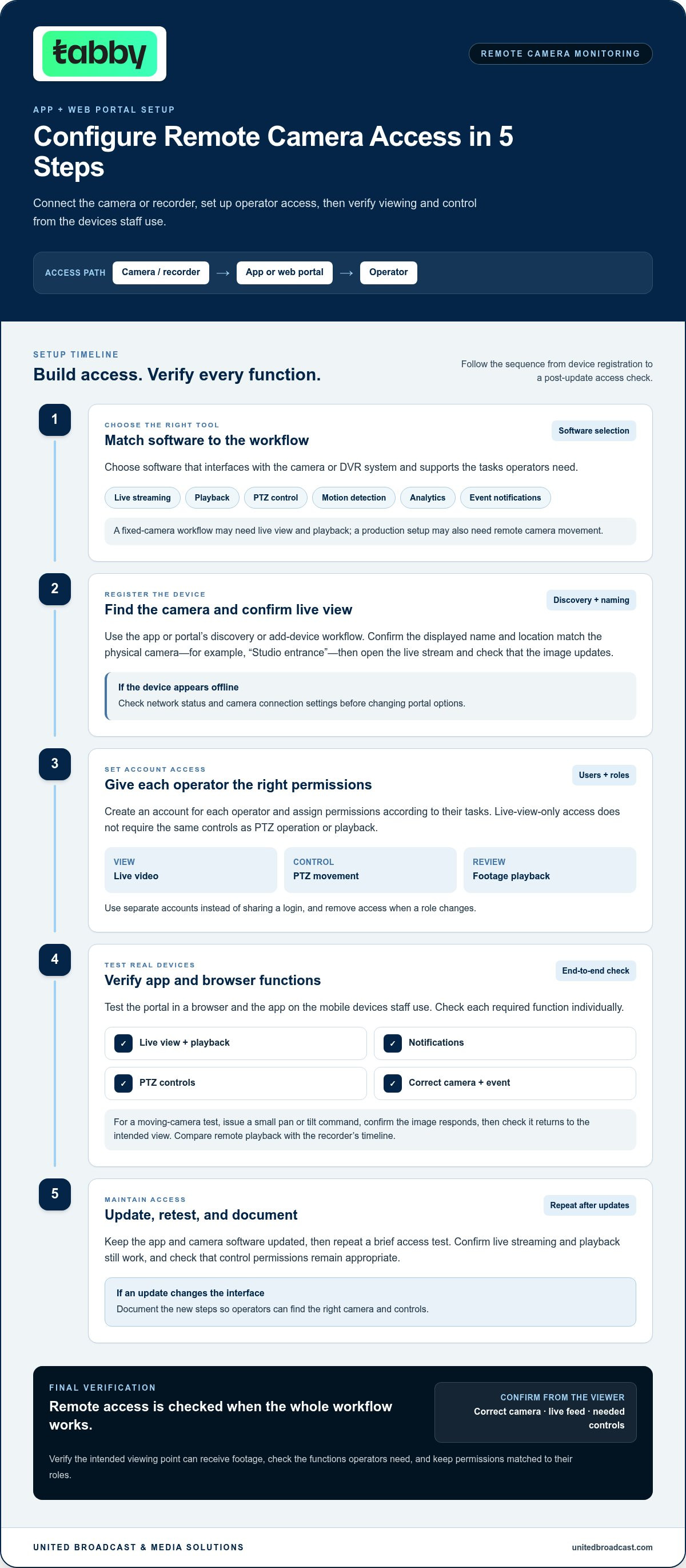
- Choose software that interfaces with the camera or DVR system and supports the required tasks. Remote CCTV software may provide live streaming, playback, pan-tilt-zoom control, motion detection, analytics and event notifications. An operator monitoring a fixed camera may need live view and playback, while a production setup may also require remote camera movement. Match the functions to the workflow before adding users.
- Register the camera or recorder in the app or web portal using its discovery or add-device workflow. Confirm that the displayed name and location match the physical camera, such as “Studio entrance” rather than a default identifier. Open the live stream and check that the image updates. If the device appears offline, check network status and camera connection settings before changing portal options.
- Create an account for each operator and assign permissions according to their tasks. Someone who only checks live video does not need the same controls as an operator responsible for PTZ movement or playback. Use separate accounts instead of sharing a login, and remove access when a role changes. Clear account ownership and permissions make it easier to identify who can view, control or review footage.
- Test the portal in a browser and the app on the mobile devices staff use. Check live view, playback, notifications and pan-tilt-zoom controls individually. For a moving-camera test, issue a small pan or tilt command, then confirm the image responds and returns to the intended view. Compare remote playback with the recorder’s timeline to verify that you selected the correct camera and event.
- Keep the app and camera software updated, then repeat a brief access test after updates. This helps maintain security. Confirm that live streaming and playback still work, and check that control permissions remain appropriate. If an update changes the interface, document the new steps so operators can find the right camera and controls.
When remote access needs to fit a broader camera workflow, discuss system integration requirements with United Broadcast & Media Solutions.
System upgrades and security practices
For UAE installations, treat privacy as a design requirement: avoid recording neighbouring properties or places where people expect privacy. Define the monitoring purpose, who can access footage and how recordings are handled under the requirements that apply to the site.
- Check camera and recorder firmware before making other changes. Install available updates promptly to help maintain system stability and security. After an update, test live viewing, recording, playback and remote controls. Record the device, update date and result so operators can trace changes if a function behaves differently.
- Protect remote video traffic with a secure VPN tunnel. In a monitoring control room, keep the tunnel separate from the business’s main internet connection. This separates camera traffic from ordinary office use and helps operators manage access deliberately. Review which accounts can enter the viewing system, and remove permissions when they are no longer needed.
- Secure outdoor cameras at the mounting point. Use sturdy brackets and anchors, adding tamper-proof screws where suitable. After installation, check that the camera’s viewing angle still covers the intended area. A mount that shifts can leave a critical area outside the frame, while exposed equipment may be easier to disturb.
- Adjust motion-detection sensitivity to suit the camera’s actual scene. Wind-blown trees or changing light can trigger unnecessary events, so review sample alerts under normal conditions. Change the sensitivity or detection area, then test again. For example, exclude a busy walkway if the system only needs to flag movement near a restricted entrance.
- Review privacy and access settings whenever the system changes. Limit viewing permissions to defined roles, and use an approval process before sharing footage. Position cameras to capture the required operational area without including neighbouring property or private spaces. Document camera views and access responsibilities so future adjustments preserve the original privacy boundaries.
- Test recovery after upgrades or security changes. Confirm that cameras reconnect, recordings remain accessible and notifications reach the intended operators. If the system includes intrusion alarms, document who can arm or disarm them and how responses are handled. Consider contracts, liability and insurance when remote operators control alarm states.
Apply the requirements relevant to the site, define the monitoring purpose, restrict footage access to approved roles and establish how recordings are handled. Position cameras to avoid neighbouring properties and places where people expect privacy, and use an approval process before sharing footage.
Clarify who is responsible for maintaining the connection and equipment. A remote monitoring control room should keep video transmissions on a secure VPN tunnel separate from the business’s main internet connection. Include firmware checks in routine maintenance and install available updates promptly to help maintain system stability and security. For outdoor units, use sturdy brackets and anchors, adding tamper-proof screws for protection. After maintenance, check that camera coverage remains aligned with the intended area and operators retain the access they need. Review these safeguards whenever equipment or access arrangements change.
Automatic camera discovery and registration
Use discovery to identify cameras on the network, then register each device with a clear name and purpose. Treat detection and registration as separate checks: a camera can appear in a scan without being ready for monitoring.
- Place the camera and monitoring workstation on a network path that allows them to communicate. Check the assigned network segment and any separation between camera and control-room traffic. If a camera does not appear, confirm that both devices can reach the relevant network before repeating discovery. For example, a camera on an isolated segment may need an approved route to the monitoring system.
- Run the recorder or management software’s camera discovery function, then compare each result with the physical installation. Use the camera’s device identifier and location to distinguish devices, especially when several units share a model. A result labelled “Camera 01” needs a site-specific name, such as “Studio wide shot,” before operators can identify it quickly.
- Resolve duplicate or outdated entries before registering devices. A previous installation may leave an old camera record alongside the newly discovered device. Match the displayed identifier to the unit being installed, then remove or correct obsolete records. This helps prevent an operator selecting a disconnected entry when a live camera occupies the same location.
- Register each discovered camera with its assigned name, location and intended view. Group devices by practical areas, such as studio, loading bay or entrance, so operators can navigate without relying on default labels. Use a consistent naming pattern across the recorder, app and web portal. Shared location names reduce selection errors across interfaces.
- Complete registration using the camera’s authorized access credentials, then confirm that the system reports the device as available. Do not reuse default credentials across installations. Store access details through the organization’s approved process, and restrict configuration rights to camera administrators. A registered camera should be identifiable without exposing its credentials in its display name.
- Test the registered device from its assigned view. Open the live feed, confirm the image shows the expected location, and verify any supported movement or recording controls. If the image shows a different camera, correct the association before operators rely on the view. Record the final device name and location in the site’s camera inventory.
Remote camera monitoring and system components
Plan the camera, network, control software and recording path as one system. The right combination depends on the viewing task, site layout and required camera movements.
-
Identify Remote Monitoring Components
List each camera, its power source, network connection, control software and recording destination. Include the operator display and any required alert or building-system interfaces. This inventory shows where video travels and which components must communicate. For a remote studio camera, include the camera, network, control interface and the recorder or cloud service receiving its feed.
-
Check Protocol and Software Compatibility
Match the camera’s supported control protocols and software interfaces with the recorder or management platform before integration. Compatibility varies by camera model and brand, so check support for video, pan-tilt-zoom commands, presets and timing functions separately. No single protocol or application works across every camera brand; confirm each required function with a practical control test.
- Choose the camera type and movement capability according to the shot or area being monitored. A fixed camera suits a defined view, while a remotely controlled camera can pan, tilt or zoom. Some systems also use preprogrammed cues. Set useful views as presets, including a home position, so operators can return to consistent framing without repeated manual adjustment.
- Select a power method that suits the camera’s location and operating pattern. Cameras can use AC power, batteries or solar power. Consider maintenance access, the availability of a power source and whether continuous monitoring is required. Choose for the site rather than assuming one method suits every camera.
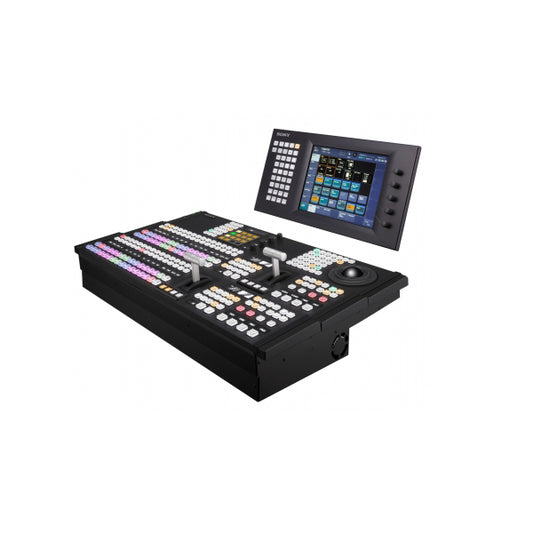
- Plan how video reaches the operator and how the system handles events. Remote CCTV can integrate cameras with alarms, access control and building management systems. Configurable event settings can trigger alerts for activity that needs attention. Specify which events matter, who receives notifications and whether operators need playback or reports to review them.
- Assess system scale before choosing management software. Check whether it can interface with the camera or DVR system, support multiple devices, and scale as the installation grows. A setup described by ETSI provides camera control and timing synchronization over a 5G network. Treat network capacity, device compatibility, and synchronization needs as connected design decisions.
- Test the complete operating path, not just the camera image. Confirm that the intended operator can view video, control supported movement, access the correct preset and receive relevant event information. Testing these functions gives a clearer picture of system readiness than checking connectivity alone.
United Broadcast & Media Solutions (UBMS): Professional Video Cameras
United Broadcast & Media Solutions (UBMS) helps production teams select professional camera equipment for remote monitoring and control workflows. Turn to UBMS when planning a camera system and comparing professional video cameras with digital cinema cameras for your capture requirements.
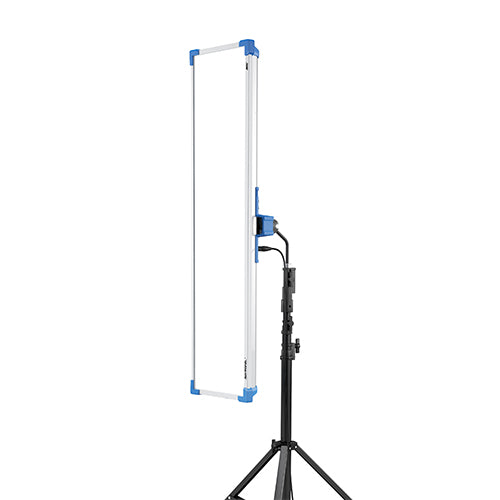
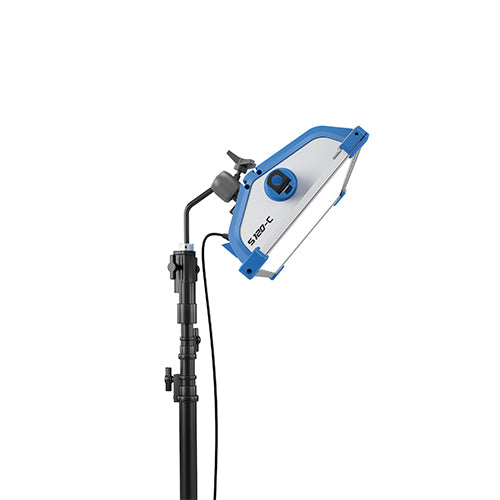
Camera selection is only one part of the imaging chain. Cinema lenses and professional lighting equipment also shape framing and image quality, while compatibility with the planned control and recording setup remains essential. Reviewing these requirements together helps you make a more informed equipment decision.
Explore professional video cameras for your production needs. Contact United Broadcast & Media Solutions or visit unitedbroadcast.com to discuss your equipment requirements.
Plan the Next Stage of Your Camera Workflow
Before expanding your camera operation, define what success looks like for the people who will use it. Identify the most important views, who needs access and how operators will respond when a camera or connection needs attention. These decisions give your technical plan a clear operational purpose.
As you continue setting up remote camera control systems, consider how equipment choices support the workflow. United Broadcast & Media Solutions (UBMS) offers Professional Video Cameras, Digital Cinema Cameras and Cinema Lenses for professional imaging requirements. Aligning camera and lens choices with your intended use helps keep future system decisions focused.
Share your requirements with UBMS to discuss the right next step for your setup.
A considered plan gives your team a strong foundation for the work ahead.
Frequently Asked Questions
What equipment is needed to set up a remote camera control system?
You need a compatible camera, network connection, control software, power source and viewing device. Add a recorder or storage destination if the workflow requires retained footage, plus suitable mounts and cables for installation. A production setup may also need a remote trigger for timed capture. Choose each component according to the required view, control functions, recording needs and installation location.
How do you connect and configure cameras for remote control?
Connect the camera to its network and power source, then add it to the management software using its device details. Assign a clear location name, such as “main stage,” and map it to the correct recording channel. Configure the required control functions, then test them from the operator’s actual device. Record the final camera names and channel assignments for future maintenance.
How can you secure a remote camera system against unauthorized access?
Use individual accounts and grant each person only the permissions needed for their role. Protect remote connections with a secure VPN, avoid shared or default credentials, and store access details through an approved process. Review account access when staff responsibilities change. Keep a record of who can view footage, change camera settings or operate controls, then remove access that is no longer required.
What are the steps to troubleshoot latency, connection drops, or failed remote controls?
First, compare the camera’s local feed with the remote view to determine whether the fault is on-site or across the network. Check network status, cables, camera settings and software connection indicators. If video works but movement commands fail, test the control function and permissions separately. Restart the affected camera, then retest one function at a time and note which change restores stable operation.


